Table of ContentsClick to view all sections
- Documents for Online Forms: Start with the form’s official instructions
- A practical document-preparation checklist
- Check the details before making scans
- Prepare the documents that apply to your form
- Make clear, upload-ready digital files
- Organise your folder and protect your information
- Enter details carefully and upload one file at a time
- Examples: how preparation prevents common problems
- Mistakes to avoid
- Conclusion
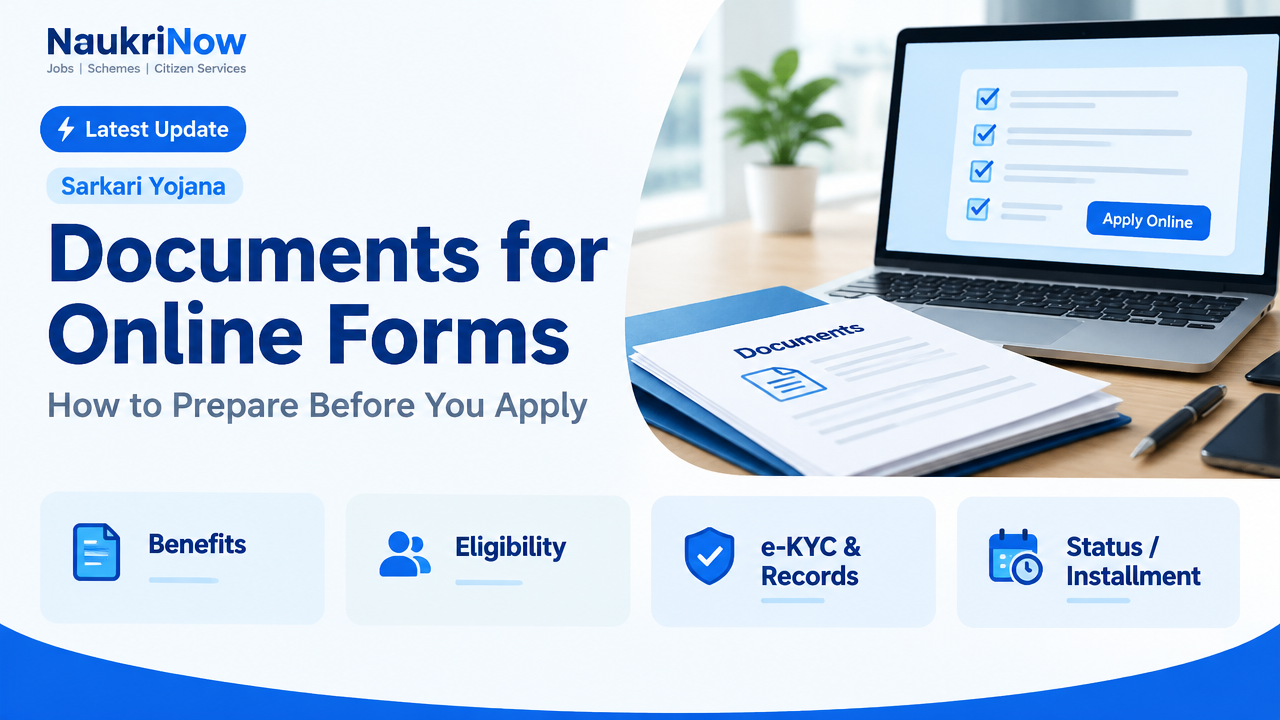
Documents for Online Forms — this guide explains the latest verified details, eligibility, benefits, application or status steps, and official resources relevant to this topic.
Getting documents ready before you open an online application can save time and help prevent avoidable errors. A mismatched name, an unreadable scan or a file in the wrong format may delay an application or require you to start again. A little preparation makes it easier to enter accurate details and upload the right records.
There is no single document set that works for every form. Requirements differ between recruitment, education, admissions, financial services and government applications, and they can change. Treat the form’s official instructions as the final authority. This guide explains how to prepare common documents and files without assuming that every application needs the same things.
Documents for Online Forms: Start with the form’s official instructions
Before scanning anything, find the instructions on the responsible organisation’s official website or application portal. For a public recruitment or government service, check the relevant department or authority’s official notice and portal. For a college, employer or private service, use that organisation’s official application information. Avoid relying on forwarded messages, unofficial summaries or old screenshots when checking current requirements.
Look for a document list and note what is required at each stage. Some forms ask for information first and request proof later. Others require files during registration. Check whether a document must be current, issued by a specified authority, in a particular language, or in a prescribed format. Also check file type, size limits, image dimensions and any rules about colour scans, self-attestation or translations. These details are form-specific.
Make a short checklist from the instructions. Mark each item as required now, needed later or not applicable. Do not upload extra personal records simply because you have them.
A practical document-preparation checklist
- Application details: the official notice or instructions, application reference if already created, and a secure place to record login details.
- Identity and personal details: whichever identity or date-of-birth proof the form specifically accepts.
- Education and work records: relevant certificates, mark sheets, transcripts, experience records or other proofs requested for the application.
- Additional eligibility documents: only those that apply to you and are listed in the instructions, such as category, disability, residence or other certificates.
- Photograph and signature: files prepared to the portal’s stated specifications, if requested.
- Digital copies: clear, complete scans or photographs in the permitted file type and within the size limit.
- Final check: a comparison of names, dates and other entered details against the original records.
Check the details before making scans
Place the original records you may need together and compare their details. Check the spelling and order of your name, date of birth and any other identifiers against the form’s instructions and the records it asks you to use. Pay attention to initials, spaces, hyphens and differences in transliteration. A small variation can lead to questions if supporting records appear to identify different people.
Do not guess which record should take priority if documents disagree. Follow the application instructions on which proof to use. If they do not explain what to do, contact the responsible organisation through the contact route published on its official website before submitting. Do not edit a certificate or alter a scan to make two records appear to match. If a correction or supporting explanation is needed, use the authorised process.
Check that each certificate is complete and legible, including both sides where relevant, seals, signatures, issue details and any page that contains important information. If a document is damaged or hard to read, find out whether the issuing authority can provide a replacement or whether the application accepts another form of evidence. Do not assume a photocopy, provisional record or expired document will be accepted.
Prepare the documents that apply to your form
Identity and personal records
Use only the identity proof named or accepted by the application. Different forms may ask for different records, and a familiar identity document is not automatically suitable for every purpose. Check whether the name, photograph, number or address must match a particular record, and whether the document needs to be valid on the date of application.
Some applications ask for address or date-of-birth evidence separately from identity proof. Read each label carefully: one document may not meet two requirements unless the instructions say it can. Avoid sending sensitive identity information to unofficial websites or people offering to complete the form for you.
Education, employment and experience
For education-related applications, gather the certificates, mark sheets or transcripts for the qualifications requested. Make sure you understand whether the form asks for the final certificate, individual-year results, a provisional record or another document. Enter subject names, marks, grades, passing dates and institution details from the relevant record rather than memory.
For work or recruitment forms, prepare only the employment proofs requested. This might include an experience certificate, service record or other employer-issued evidence, depending on the application. Check that dates and job titles entered in the form agree with your records. If the form asks for details that your document does not show, follow its instructions rather than adding unsupported claims.
Category, disability and other eligibility records
Some applications require additional certificates to establish eligibility for a particular category, reservation, accommodation or other benefit. The accepted document, issuing authority, format and validity conditions can vary by application and may depend on current rules. Check the official notice or portal for the exact requirement. Do not assume that an old certificate, receipt or application acknowledgement is a substitute for the requested proof.
If a certificate is in a language the form does not accept, check whether an authorised translation or another supporting document is required. Keep the original and any approved translation together so you can refer to both if asked.
Photographs and signatures
When a form asks for a recent photograph or signature image, follow its instructions for background, orientation, dimensions, file type and size. Use a clear image with no glare, shadows or cut-off edges. Make sure a signature is fully visible and not obscured by a fold, border or camera shadow.
Do not use filters, retouching or editing that changes the content of a photograph, signature or document. Basic cropping or resizing may be acceptable when needed to meet technical specifications, but follow the portal’s rules. If the instructions require an unedited image or a particular capture method, use that method.
Make clear, upload-ready digital files
- Use a scanner or a steady camera. Place paper on a flat surface in good, even light. Keep the camera parallel to the page to avoid slanted edges and focus blur.
- Capture the whole document. Include all corners and relevant text. Check both sides if information appears on the reverse. Do not crop out stamps, seals, notes or page numbers that may matter.
- Check readability. Open each image and zoom in enough to confirm that names, numbers and fine print can be read. A file that looks clear as a thumbnail may be blurred when enlarged.
- Use an accepted file type. Follow the portal’s instructions for formats such as PDF or image files. Do not assume that a file type accepted by one service will work on another.
- Meet the stated size and image limits. Check the portal’s maximum or minimum file size and any pixel or dimension requirements. If you need to compress or resize a file, review the result afterwards to ensure it remains legible.
- Save a clean final copy. Use a simple filename, such as Education_Certificate or Identity_Proof, so you can identify the right file quickly. Avoid putting unnecessary personal numbers in filenames.
Do not combine unrelated records into one file unless the form asks for a combined document. If it does, arrange the pages in a sensible order and check that the finished file opens correctly. Password-protected files, links to cloud storage or files stored only inside a messaging app may not be accepted; use the upload method specified by the portal.
Organise your folder and protect your information
Create one folder for the application and keep the original records, upload-ready copies and a checklist organised separately. Clear filenames help prevent uploading a mark sheet where a certificate is required. If you have several versions, label the final copy clearly and remove duplicates from the upload folder.
Store copies securely, especially when they contain identity numbers, financial information or other sensitive personal details. Use a device and account you control, lock your screen, and avoid shared computers or public Wi-Fi where possible. If you use a shared device, sign out when finished and remove downloaded copies from its folders and recycle bin. Never share a password or one-time code with someone claiming they need it to upload your documents.
Services such as DigiLocker may be useful where a particular application accepts records from them, but acceptance is not universal. Check the official portal’s instructions rather than assuming a digital record or link will replace a requested upload.
Enter details carefully and upload one file at a time
Keep the original documents beside you while completing the form. Enter information exactly as requested and check dates, identification details, marks, addresses and contact information before moving on. Some forms use separate fields for surname, given name or initials; follow the form’s layout rather than rearranging a name without checking the guidance.
When uploading, read the label beside each upload button and select the matching file. After the upload, look for a preview, filename or confirmation indicator. Open the preview if available and make sure it is the intended document, correctly oriented and readable. A successful upload indicator does not always mean the correct file was selected.
Before final submission, review the whole application, including any declarations. Keep a copy of the submitted form, acknowledgement or reference number and any confirmation the portal provides. If the portal allows changes only before final submission, make corrections while that option is available. For help with an error or replacement document, follow the official portal’s process.
Examples: how preparation prevents common problems
Example 1: A name appears differently on two records. An applicant notices that one certificate includes a middle name while another uses an initial. Instead of editing either scan, they check which record the application asks them to use and consult the official instructions about discrepancies. This is safer than guessing and submitting inconsistent information.
Example 2: A scan exceeds the upload limit. An applicant compresses a file but does not inspect the result. The text becomes too faint to read. A better approach is to keep the original scan, make a smaller copy using a suitable setting and reopen it at full size to check clarity before uploading.
Example 3: A form asks for proof the applicant does not have ready. Rather than uploading an unrelated document, the applicant checks the official notice to see what alternatives, if any, are accepted and whether the document is needed at this stage. If the instructions are unclear, they ask the responsible organisation before submitting.
Mistakes to avoid
- Using an old checklist or unofficial post instead of the current official instructions.
- Assuming the same documents, file limits or certificate rules apply to every application.
- Uploading blurred, incomplete, sideways or heavily compressed images.
- Entering dates, marks or names from memory when a record is available.
- Changing, retouching or removing details from an official document.
- Submitting extra sensitive records that the form does not request.
- Choosing a file by its name alone without checking its contents and upload preview.
- Waiting until the final moment to discover a missing record or technical issue.
- Closing the portal before saving the acknowledgement or checking whether submission completed.
Frequently Asked Questions
Do all online forms need identity, education and address documents?
No. The required records depend on the purpose and rules of the particular application. Prepare only what the official instructions request, including any documents needed at a later verification stage.
Can I use a phone photo instead of a scanned document?
Only if the portal permits it and the image meets its requirements. A phone photo should be sharp, evenly lit, complete and free of glare. Check that every important detail is readable before uploading.
Should I upload both sides of a document?
Check whether the reverse contains information and read the portal instructions. If both sides are required or contain relevant details, capture them as directed. Do not add extra pages if the form specifies a particular page or format.
What should I do if the file is too large?
Use a suitable compression or resizing method only if the portal allows it, then inspect the finished file for clarity and completeness. If it still does not meet the stated limit, check the official help instructions rather than changing the document’s content.
Can I upload a document in a different name or language?
Do not assume it will be accepted. Check the application’s rules for name differences, translations and supporting records. If the guidance does not address your situation, ask the responsible organisation through its official contact route.
Can I use a digital document from DigiLocker?
Use it only when the application explicitly accepts that source or format. Requirements vary, so verify the instructions on the official portal before relying on a digital document.
What if I find an error after submitting?
Check the official portal for a correction or support process and follow its instructions. Do not create a second application unless the responsible organisation says to do so. Keep your acknowledgement and any relevant communication for reference.
Conclusion
Preparing documents before filling an online form is mainly about checking the official requirements, making sure your records agree, and creating clear files in the format the portal accepts. Keep a focused checklist, protect your personal information and review every upload before submitting. If a requirement or document mismatch is unclear, ask the responsible organisation through its official website or application portal rather than relying on guesswork.
Comments