Table of ContentsClick to view all sections
- PM Awas Yojana 2026: PMAY-G MIS report: quick overview
- What you can do with the dashboard
- Before you start
- How to check your name: step by step
- Moving around: path, Back and Start over
- Report details: how to read common PMAY-G terms
- Instalment history and schedule: what the MIS can show
- Assistance and additional support under PMAY-G
- Eligibility, exclusions and house or land questions
- Search tips
- Save, print or share the list
- Using the dashboard on your mobile
- Name not in the list? Try this
- Common problems and quick fixes
- Advantages and limitations of checking MIS online
- Conclusion
- Important links
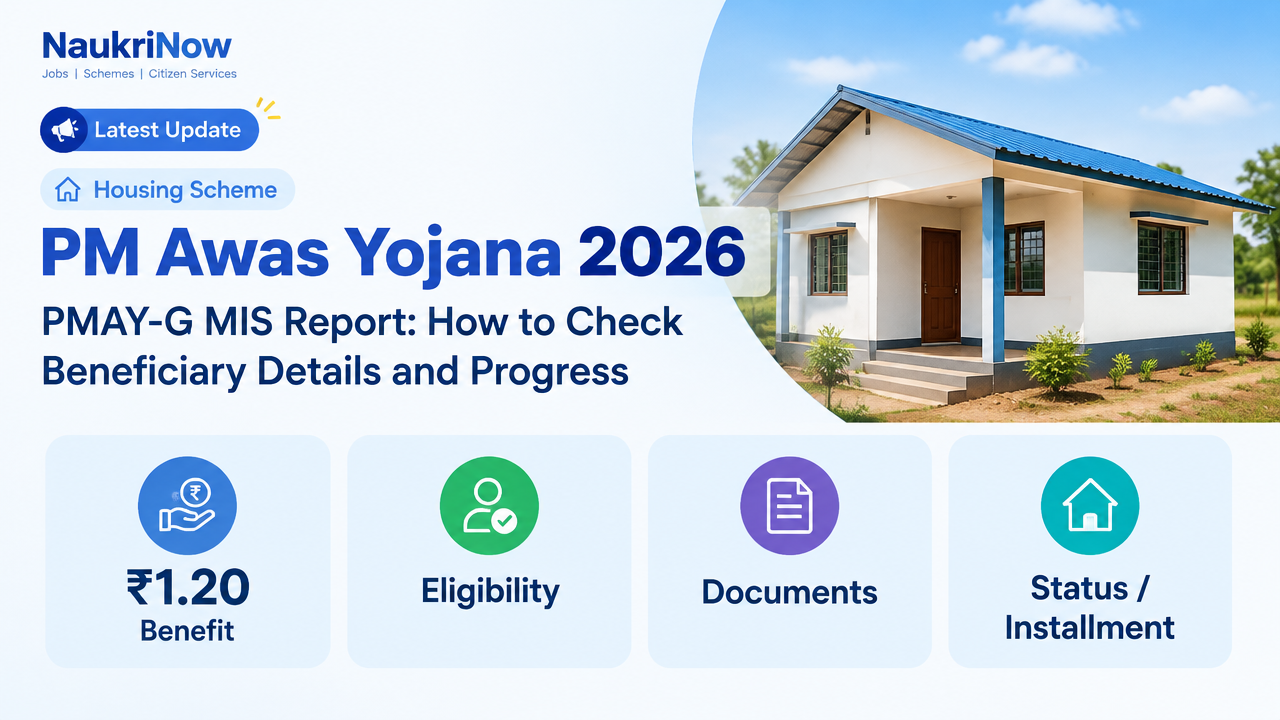
PM Awas Yojana 2026 searches often lead to a practical question: how can you check a rural housing beneficiary’s record and construction progress? The PMAY-G Management Information System (MIS) publishes programme information through reports that can often be explored by administrative area. This guide explains how to prepare for a search, navigate a report, interpret common entries and respond when a record is missing or unclear.
Use the official PMAY-G website for scheme information and official work. Report menus, available fields and data can change, so the instructions below describe a general route rather than a promise that every screen will look identical. An MIS entry can help you track a record, but it is not a substitute for an official sanction document or confirmation from the local programme office.
PM Awas Yojana 2026: PMAY-G MIS report: quick overview
| Item | What to know |
|---|---|
| Scheme | Pradhan Mantri Awaas Yojana – Gramin (PMAY-G) |
| Administered by | Ministry of Rural Development, Government of India |
| Started | 2016; it replaced the Indira Awaas Yojana |
| What MIS reports help with | Reviewing reported targets, registrations, approvals, construction progress and beneficiary records, where those fields are available |
| Official PMAY-G website | pmayg.nic.in |
The MIS is best understood as a collection of reports rather than a single all-purpose application form. One report may show area totals, while another may provide more detailed beneficiary information. The fields and drill-down options depend on the report and the period selected. If a menu or label has changed, look for the report or MIS area on the official website and choose the option that most closely matches the information you need.
What you can do with the dashboard
Depending on the report and year selected, you may be able to review progress for a state and then move through districts, blocks, gram panchayats or villages. Some reports show totals; others provide beneficiary-level details. Available columns are not necessarily the same across reports or years. For a PM Awas Yojana 2026 check, the information available will depend on the report and period selected.
- Compare reported targets and progress for an area, if the report provides those figures.
- Look for a beneficiary record using a name or registration number when the report includes a searchable list.
- Review recorded stages such as registration, sanction, instalment release or completion when those fields are shown.
- Use available download or print options, or your browser’s print function, to keep a reference copy.
- Use area-level results to check that you have selected the right location before searching a longer list.
A public MIS report does not itself accept an application, approve a house or confirm that a person is eligible. For an individual decision, check the official record with the Gram Panchayat or Block Development Office (BDO).
Before you start
A few details can make the search more precise. Before opening a report, note the beneficiary’s name as it appears on available documents, the village and gram panchayat, and—if available—the PMAY-G registration number. The financial year of sanction may also help narrow the search when the report asks you to select a year. A registration number is usually a more precise search clue than a common name, but compare the result with other details rather than relying on a number or name alone. These details can also help when you are checking PM Awas Yojana 2026 records.
- Check that you are looking for a rural PMAY-G record. The PMAY-G and PMAY-Urban websites are separate official resources.
- Have the correct local area details to hand. Similar village or panchayat names can make an otherwise successful search misleading.
- Keep relevant papers nearby so you can compare the report with the beneficiary’s own documents.
- Use a private device or a trusted connection where possible, especially if you need to view or save personal beneficiary information.
You do not need to assume that every report will have the same search box, filters or download controls. The official page’s available fields determine what you can search and save.
How to check your name: step by step
Step 1: Open the dashboard
Visit the official PMAY-G website at pmayg.nic.in and locate its reports or MIS area. This is the official starting point for a PM Awas Yojana 2026 report check. Menu names and page layouts may change. If you arrive at a general scheme-information page, look for the report links on the official site rather than relying on an unrelated third-party page.
Step 2: Choose the financial year
If the report asks for a year or financial year, select the period relevant to the record you are checking. A wrong period can produce a list that appears incomplete or empty. If you do not know the year, check the beneficiary’s available sanction documents or ask the local programme office which period to use. Do not treat a missing result for one year as proof that a record does not exist in another report or period.
Step 3: Choose the scheme
Where a scheme selection is offered, choose the applicable PMAY-G option. Read the label carefully before proceeding. This guide concerns the rural scheme; it does not describe the process for checking an urban housing record.
Step 4: Choose your state and tap Submit
Select the state and any other location fields requested by the report. Some pages require earlier selections before later fields become available. Submit or open the selection and wait for the results. Government services or internet connections may respond slowly at busy times, so allow the page time to load before submitting the same request again.
Step 5: Tap names and numbers to go deeper
Some reports use clickable area names or totals to open the next administrative level. If the page supports this, follow the relevant result from state to district, block, gram panchayat or village. The available levels depend on the report. Check each displayed location as you move down so you do not search the wrong area by mistake.
If the report provides a breadcrumb, back control or similar navigation, use it to return to an earlier level. If not, use the page’s available controls. Starting over may be necessary if the selections become unclear, but first check whether the report offers a way back.
Step 6: Find your name
Once the relevant list appears, use its search field if one is available. Try the registration number first. If you do not have it, try a short part of the name and then check likely spelling variations. A report may record a name differently from a document, and some lists may not include a search box. In that case, use the location filters and the browser’s available page-search function if it works with the displayed list.
Do not assume that a similar name is the right person. Compare the displayed village and any other available details with the documents you have. If there are multiple people with similar names, ask the Gram Panchayat or BDO to verify the official beneficiary record.
Step 7: Save or share
If the report offers a download or print option, use it to keep a reference copy. Otherwise, a browser print menu may offer “Save as PDF.” The option depends on the device and browser, so it may not appear in every situation. Before sharing a copy, consider whether it includes another person’s personal information. Avoid posting beneficiary details publicly or circulating them in groups without a clear need.
Moving around: path, Back and Start over
Area reports may be arranged as a sequence of selections. Keep track of the year, state and local areas you chose, especially if you return to the report later. If the page displays a path or breadcrumb, it can help show which level you are viewing. A back control may take you to the previous level; if the results change unexpectedly, confirm your selections before continuing.
When a page becomes difficult to interpret, it can be safer to return to the report’s starting point and select the period and location again than to rely on an uncertain result. Record the path you followed, such as the selected state and village, so you can explain the search to a local official if you need help.
Report details: how to read common PMAY-G terms
| Report term | Plain-English meaning |
|---|---|
| Target | The number of houses allocated as a target for an area or period. |
| Registered | Families recorded in the PMAY-G system, AwaasSoft, against the relevant target. |
| Geo-tagged | A house-site or construction-stage photograph has been recorded with location information. |
| Sanctioned | The house has been approved and a sanction order issued. |
| 1st / 2nd / 3rd instalment | A payment stage recorded for the beneficiary. The report entry alone does not explain every payment condition or timing. |
| Completed | The house is recorded as finished in the programme data. |
These labels describe what has been entered in a report; they do not answer every question about an individual case. For example, a target is an area or period figure, not a confirmation that a particular household has been approved. A recorded sanction is different from a payment entry, and a completion entry is not by itself a receipt or payment confirmation. Read the column heading, selected year and location together before drawing a conclusion.
Instalment history and schedule: what the MIS can show
PMAY-G assistance is released in stages, but report fields can differ. Do not assume that every beneficiary will have the same number of entries, payment dates or amounts. The following table explains how to approach common instalment labels without treating them as a guarantee about an individual payment.
| Stage shown in a report | What it indicates | What to verify |
|---|---|---|
| 1st instalment | A first-stage release may be recorded against the beneficiary. | Confirm the recorded payment details through the official record or local programme office. |
| 2nd instalment | A second-stage release may appear as construction progresses. | Check the applicable progress and payment record; do not infer a payment date from the label alone. |
| 3rd instalment | A third-stage release may be listed where applicable. | Confirm whether this stage applies to the individual case and whether the record is current. |
If an entry is absent, unclear or inconsistent with a document, write down the report name, selected period and location, along with the displayed status. Take that information to the Gram Panchayat or BDO and ask for the official record to be checked. The MIS alone may not explain why a field is blank or whether an update is pending.
Assistance and additional support under PMAY-G
The programme figures below provide background for reading scheme information. A report entry does not by itself confirm the amount payable in an individual case. Check current official guidance and local records before relying on a payment figure.
| Support described in the programme information | Details |
|---|---|
| House-building assistance | ₹1.20 lakh in plain areas and ₹1.30 lakh in hilly, difficult and North-Eastern areas. |
| Toilet support | ₹12,000 for a toilet under Swachh Bharat Mission (Gramin), as described in the programme information. |
| Wage employment support | 90 days of paid work under MGNREGA to build a house; 95 days in hilly and difficult areas, as described in the programme information. |
| Programme phase | The cited phase provides for 2 crore additional houses from 2024–25 to 2028–29. |
These figures are programme information, not a calculation of what a particular household will receive or when. Individual records and applicable official guidance should be checked with the relevant programme office.
Eligibility, exclusions and house or land questions
The MIS is a progress and record-checking tool, not an eligibility calculator. A name appearing in a report does not replace the relevant official approval, and a missing name alone does not establish that a household is ineligible. The programme information presented here does not set out a complete list of eligibility rules, exclusions or land-document requirements, so do not rely on an unofficial checklist for those decisions.
- For eligibility or exclusion questions: ask the Gram Panchayat or BDO to explain the applicable selection and verification record.
- For a house or land issue: take relevant papers to the local programme office and ask what documentation applies to your case and area.
- If your name is absent: ask whether your household was surveyed or recorded and whether an Awaas+ survey or other current process is available locally. Availability and procedures should be confirmed with officials.
- If a record appears under a different spelling: show the report and relevant documents to local officials and ask them to confirm whether it is the same beneficiary.
Search tips
- Search with a short part of the name rather than entering a full name immediately, if the report has a search box.
- Try another spelling or the name in Hindi if the report supports it; do not assume that every report accepts both scripts.
- Use the registration number, village or another available field to narrow a long list.
- Confirm that you have opened the correct village before searching or comparing names.
- When a result looks plausible, compare all available details with the beneficiary’s documents rather than relying on a name match alone.
- For a time-sensitive payment or status question, confirm the result through the official record or local programme office.
Save, print or share the list
Use the report’s download or print controls when provided. If there is no report-specific PDF button, check whether your browser offers a print option and a “Save as PDF” destination. The available options depend on the page, device and browser. If you save a file, give it a clear name that helps you remember the report period and area, without adding unnecessary personal details.
Keep beneficiary information private. A downloaded report or screenshot can contain personal details, so store it carefully and share only what is needed with the relevant person or office. A saved copy is useful as a reference, but it may not reflect later updates. Check the official page again when you need current information.
Using the dashboard on your mobile
Many report tables contain more columns than fit on a phone screen. If the table is wider than the display, try swiping sideways within the table or rotating the phone to landscape view. If buttons or dropdowns are difficult to use, zooming the page may help, although you may need to scroll to see all fields. A larger screen can make a wide table easier to review, but it does not change what the report data means.
Wait for the results to load before tapping again. Repeatedly submitting selections can make it harder to tell which result belongs to which request. When you find a record, check the area and period before saving a copy. Avoid keeping someone else’s beneficiary information in a place where it may be viewed or shared unintentionally.
Name not in the list? Try this
A missing search result can have several explanations: the selected year or village may be wrong, the name may be recorded with a different spelling, or that particular report may not include the record. A missing entry in one list does not, by itself, establish ineligibility or prove that a household was never recorded. When checking PM Awas Yojana 2026 records, confirm the report period and area before drawing conclusions.
- Check the selected financial year and the location from state down to village, where those fields are available.
- Try a registration number if you have one, then try a shorter name or a spelling variation.
- Check another relevant report or period if the official site provides one, while keeping track of what you selected.
- Ask the Gram Panchayat or BDO whether the household was surveyed or recorded and request a check of the official record.
- If a local survey or other process is mentioned, ask officials whether it is currently available in your area and what procedure applies.
Do not pay an unofficial website or agent simply to search a public report. Use the official site for report access and confirm any service or fee with an official source before proceeding.
Common problems and quick fixes
| Problem | What to try |
|---|---|
| The report is slow or will not open | Wait and retry later; a government server or connection may be busy. Avoid repeatedly submitting the same request. |
| A location field cannot be selected | Complete the earlier required selection first, such as the year or state, if the report requires it. |
| No matching name appears | Check the selected year and village, try spelling variants or Hindi if supported, and search by registration number if available. |
| The figure looks out of date | Check any “last updated” information shown on the page and compare with the official portal or local office. MIS updates may not appear immediately. |
| The status does not match your documents | Keep a copy or screenshot of the report and ask the Gram Panchayat or BDO to verify the official beneficiary record. |
| The table is difficult to read on a phone | Try rotating the phone, swiping sideways within the table or using a larger screen. |
| A print or download option is not visible | Check the report controls and your browser’s print menu. A PDF option may not be available for every report. |
Advantages and limitations of checking MIS online
Online reports can make it easier to consult programme information, but they have limits. Use them as a starting point for checking a record and follow up locally when you need a decision or clarification.
| Advantages | Limitations |
|---|---|
| Lets users review reported progress without first travelling to an office. | Data may be delayed, incomplete for a particular report or presented differently across years. |
| Area-wise reports can help narrow a search from state level to a local area. | A public report is not an application, sanction order or final eligibility decision. |
| Search, print or download options can make it easier to keep a reference copy when available. | Some tables may be difficult to use on a small screen, and report menus can change. |
| Displayed stages may help users identify which part of a record needs clarification. | A status label alone may not explain payment conditions, timing or the reason for a missing entry. |
The main practical benefit is access to reported information without treating every enquiry as an office visit. The main caution is that a screen entry is not the same as a complete explanation of a household’s case. Keep both points in mind when using the site.
Conclusion
A PM Awas Yojana 2026 MIS check is most useful when you have the correct village and, ideally, the beneficiary’s registration number. Start at the official PMAY-G site, select the relevant year and area, and read the report’s headings before interpreting a result. Treat online status as a record to verify—not as a final decision on eligibility or payment. If a name is missing or a stage looks wrong, take the report details and relevant documents to the Gram Panchayat or BDO for an official check.
Frequently Asked Questions
Is this the official PMAY-G website?
The official PMAY-G website listed here is pmayg.nic.in. Check that you are using the official site when looking for scheme information and reports.
Is it free to use?
Use the official government website for scheme information and reports. Do not pay an unofficial website or agent merely to view a public report. If a service asks for a fee, verify its purpose with an official source first.
How up to date is the data?
Update timing can vary by report and official system. Check any update note shown on the portal and confirm time-sensitive details with the local programme office.
Can I download the list as a PDF?
That depends on the report page. If it provides a print option, your browser may let you choose “Save as PDF”; otherwise, use any download option the official page provides. Not every report or device will show the same controls.
Do you save my searches or personal details?
This article does not operate the government website and cannot confirm how the official site handles searches or data. For information about data handling, check the notices and policies on the official website. Avoid sharing personal beneficiary details publicly.
Why does it sometimes take time to load?
A government service or internet connection may be busy. Wait for the page to respond and retry later if needed rather than repeatedly submitting the same selection.
Can I apply for PMAY-G through the MIS report?
No. The report is for viewing information. Ask your Gram Panchayat or BDO about the applicable survey or application process and whether it is currently open in your area.
Does a sanctioned or completed status prove that a payment was received?
Not on its own. Sanction, construction progress and instalment release are different report entries. Check the payment record and confirm with the official programme office if needed.
Where should I go if my record is incorrect?
Take the report details and relevant documents to your Gram Panchayat or BDO and request verification of the official record.
Important links
| Resource | Official link |
|---|---|
| PMAY-G official website | https://pmayg.nic.in |
| PMAY-Urban official website | https://pmaymis.gov.in |
| National Government Services Portal | https://www.india.gov.in |
Comments