Table of ContentsClick to view all sections
- What an admit card is and why the printout matters
- Before you download: find the official source
- Step-by-step: download and save your admit card
- Check every detail before printing
- How to print the admit card clearly
- Exam-day checklist: what to carry and confirm
- Common mistakes to avoid
- Troubleshooting download and printing problems
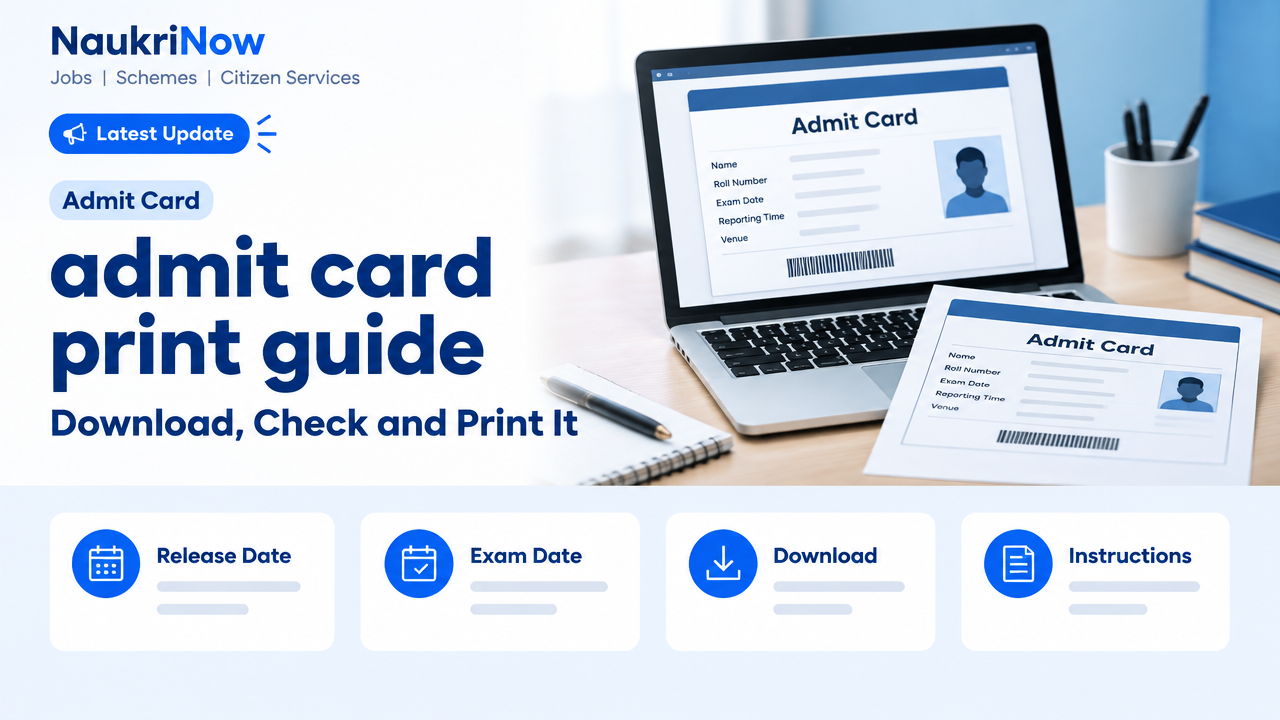
An admit card, also called a hall ticket in many exam notices, is an important document for an examination or recruitment test. It usually identifies the candidate and provides details such as the exam date, reporting time, venue and instructions. A successful download is only the first step: you should check the document carefully, print it in the format required by the exam authority and keep it safe until the selection process is complete.
This admit card print guide explains how to find the correct download page, prepare a readable printout and deal with common problems. Requirements vary by exam, so use this as a general checklist—not as a substitute for the latest official notice, candidate instructions or information printed on your own admit card.
What an admit card is and why the printout matters
An admit card is an exam-specific document issued by the organisation conducting a test. It may contain a registration or roll number, the candidate’s name, photograph or signature, exam-centre details and rules for entry. Some exams use a digital document at particular stages, while others require candidates to bring a printed copy. Do not assume that a phone screen, a saved PDF or a previous exam’s instructions will be accepted.
The printout can be checked at the venue to match you with the exam records and confirm where and when you are expected to appear. If text, a photograph, a barcode or a signature is faint or cut off, verification may be delayed. The exam authority’s instructions determine what is acceptable, so read them before printing and again before travelling.
An admit card is not the same as an application confirmation page, fee receipt or identity document. Nor does downloading it by itself guarantee entry. You may also need to meet other conditions stated in the notice, such as bringing an approved identity document or following specified security procedures.
Before you download: find the official source
Start from the examination authority’s official website or the official portal linked from its notice. Search results, social media posts and third-party job sites can help you discover that a document may be available, but they should not replace the official source. Similar-looking websites can have outdated links or request personal information unnecessarily.
- Confirm that the exam name, recruitment or notification reference and conducting authority match your application.
- Open the admit-card link from the official website rather than relying on a forwarded URL.
- Check the notice or candidate login for the required login details. These may differ between exams.
- Use a private device and a trusted internet connection where possible. Avoid entering credentials on a public computer you cannot secure.
- Keep your application confirmation or registration details nearby, but never share passwords, one-time codes or other sensitive login information with strangers.
Some authorities publish separate instructions for different posts, exam stages, regions or candidate groups. Make sure you have opened the page that applies to your own application. If the official site links to a separate login portal, follow that link and check the portal address before entering personal details.
Step-by-step: download and save your admit card
- Open the correct official page. Navigate to the exam or recruitment section and select the relevant admit-card or candidate-login link. Read any notice shown beside it.
- Enter the requested details carefully. The login may ask for information such as an application number, date of birth or another credential specified by the authority. Follow the page’s format, including any instructions about date order or capital letters.
- Review the candidate record. Confirm that the exam and personal details shown belong to you before selecting the download option. If the page displays an unexpected application, do not proceed on the assumption that it is correct.
- Download the complete file. Use the portal’s download or print option and save the PDF to a folder you can find again. Give the file a clear name, such as the exam name and your own reference, but avoid storing it in a shared public folder.
- Open the saved PDF. Check that all pages load and that text, photographs, signatures, codes and instructions are visible. A file that opens only in a browser preview may not have saved correctly.
- Keep a backup. Store a copy in a secure personal location or private cloud account if you use one. A backup helps if the first printout is lost, but it does not replace any hard copy required by the exam instructions.
If the portal provides a correction window, a separate information sheet or more than one document, read the instructions to understand which items must be printed and carried. Do not edit the PDF, crop details, add marks or change its contents.
Check every detail before printing
Review the document as soon as you download it. Compare personal and exam details with your application records, and report a possible error through the official process as soon as you can. Do not try to fix an official document yourself by changing the PDF or writing over printed information.
| What to check | What to look for | What to do if it seems wrong |
|---|---|---|
| Candidate details | Name, application or roll number, and any other identifying information | Compare with your application and follow the authority’s correction or contact instructions. |
| Photograph and signature | Correct candidate, clear image and visible signature wherever shown | Do not replace or paste an image yourself. Check the official notice for the reporting procedure. |
| Exam information | Exam name, paper or stage, date and reporting instructions | Confirm against the official candidate login and notice for your exam. |
| Venue | Centre name and full address, including any useful location details | Look for an official correction or update. Do not rely on an old screenshot or a third-party map listing. |
| Instructions | Permitted items, prohibited items, identity-document requirements and any special directions | Follow the latest official instructions, including any updates issued after the card was downloaded. |
Check every page, not just the first. Some admit cards include important instructions on the reverse side or on a separate page. If the document contains a barcode or QR code, keep it unobstructed and do not share a public image of it.
How to print the admit card clearly
Use a printer that produces legible text and images. A home printer, a trusted print shop or another suitable service can work, provided the final copy is complete and meets the exam’s directions. The official notice takes priority if it specifies paper size, colour, number of copies or another print requirement.
- Use the original PDF. Print from the downloaded file rather than a screenshot, compressed image or photograph of a computer screen. Screenshots can omit edges, reduce resolution or hide fine text.
- Check page setup. Use the paper size and layout stated by the authority. If no special size is specified, select a standard setting that keeps the entire page visible and preserves its proportions.
- Inspect the preview. Make sure no margin setting, scaling option or paper mismatch cuts off the candidate details, photograph, instructions or code. Avoid enlarging the page so much that an edge disappears.
- Choose colour or black and white according to the instructions. Do not assume colour is compulsory or that monochrome is always acceptable. If the notice is silent, prioritise a clear, readable image and check for any exam-specific guidance.
- Print at readable quality. Use enough ink or toner to make small text and images distinct. If a test print looks streaky, pale or blurred, correct the printer settings or use another printer.
- Check the finished pages. Compare the paper copy with the PDF. Confirm that every page printed, nothing is clipped and both sides are handled as instructed.
Print an extra copy if it is practical, and store it separately from the main copy. This is a backup, not permission to submit multiple copies where only one is requested. Keep the PDF accessible as well, but do not rely on being able to print at the last minute.
Exam-day checklist: what to carry and confirm
Before travelling, use your admit card and the latest official instructions to make a personal checklist. Requirements differ across examinations, so the items below are prompts to verify rather than a universal entry rule.
- The printed admit card or hall ticket in the form and number of copies specified.
- An identity document only if the notice requires one, and the specific type or original document it names.
- Any photograph, declaration, undertaking or other document expressly requested for your exam.
- Permitted stationery or equipment, if listed in the instructions.
- The centre address, reporting time and any guidance about entry, security checks or prohibited items.
Check whether the instructions require an original document, a photocopy, a particular photograph or a signed declaration. Do not infer these requirements from another exam or from a friend’s checklist. Keep documents clean and accessible, but protect personal information from unnecessary exposure.
Plan your route using the address printed on your admit card and allow time for travel and entry procedures. If the venue is unfamiliar, confirm the location in advance. A map result or a centre name alone may not identify the correct entrance, so use any official venue guidance provided.
Common mistakes to avoid
- Printing the wrong document: An application receipt or exam notice is not necessarily the admit card. Check the document title and your candidate details.
- Using an old copy: If the portal issues a revised document or the authority publishes an update, check which version applies. Do not assume an earlier download remains current.
- Ignoring later instructions: Important directions can appear separately from the card. Review official updates after downloading and before travelling.
- Printing from a screenshot: This can make text, photographs or codes unreadable. Use the original PDF whenever possible.
- Cutting off page content: Poor scaling or paper settings can hide essential details. Inspect the preview and the paper copy.
- Assuming a phone copy is enough: A digital copy may be useful as a backup, but it is not a substitute when printed documents are required.
- Waiting until the final moment: A slow portal, login issue or printer problem can take time to resolve. Download and check the document promptly after it is made available to you.
- Sharing the card publicly: It can contain personal identifiers, a photograph or machine-readable codes. Avoid posting it openly or sending it to unverified contacts.
Troubleshooting download and printing problems
| Problem | Practical steps |
|---|---|
| Portal does not open | Check that you are on the official site, try again later, use a supported browser or device, and follow any service notice. Avoid unverified mirror links. |
| Login details are not accepted | Recheck the requested format and the details used in your application. Use the official password-recovery or help process if available; do not repeatedly guess credentials. |
| PDF will not open | Download it again from the official portal, check that the file completed, and try a trusted PDF reader or another device. Do not use a converted copy as the official print source. |
| Some details are missing or incorrect | Compare the page with your application and read the official correction or contact guidance. Keep a record of the issue and any permitted proof. Do not alter the file yourself. |
| Print is faint, clipped or incomplete | Check ink or toner, paper size, scaling and page selection. Print from the saved PDF and inspect the preview before trying again. |
| No download link appears | Confirm that you selected the correct exam, stage or candidate section. Check official announcements for access instructions or portal updates before concluding that your document is unavailable. |
If the issue could affect your ability to appear for the exam, contact the authority only through details published on its official website or notice. Explain the problem clearly and retain relevant screenshots or records where appropriate, but do not include passwords or one-time codes. Response times and available support channels vary; do not rely on an unofficial number or a promise of a particular outcome.
Frequently Asked Questions
Can I print my admit card at home?
Usually, a home printer can be used if the resulting copy is complete and readable. Check the specific exam instructions for paper size, colour, page layout and any other print requirements.
Is a colour printout compulsory?
Not for every exam. Follow the latest notice and the instructions on your admit card. If no colour requirement is stated, ensure that the photograph, text and other printed details remain clear.
Can I show the admit card on my phone instead of carrying a printout?
Only do so if the official instructions permit it. If they require a printed copy, a screen display or a saved PDF will not meet that requirement. Keep a digital backup for convenience, not as a substitute for a required printout.
What should I do if my name or photograph is incorrect?
Do not edit the PDF or replace the photograph yourself. Check the official correction process or contact instructions for the examination and report the issue promptly. Keep any relevant application record available.
My admit card will not download. What should I try?
Confirm you are using the correct official portal and login details, check for a service notice, and try a different browser or device. If the problem continues, use only the authority’s published support route.
Should I print every page?
Read the document and exam instructions. If the PDF has multiple pages or includes a separate instruction sheet, check whether each page must be carried or completed. Do not leave out a page without confirming what is required.
What if I lose the printed copy?
If the official portal still allows access, download and print the document again. Verify that it is the correct version and follow any instructions about revised or updated cards. A saved backup can make this easier.
Does having an admit card guarantee entry to the exam?
No document alone guarantees entry. You must follow the exam authority’s eligibility, identity verification and venue instructions, and bring the items it requires. Check the latest official guidance before attending.



Comments