Table of ContentsClick to view all sections
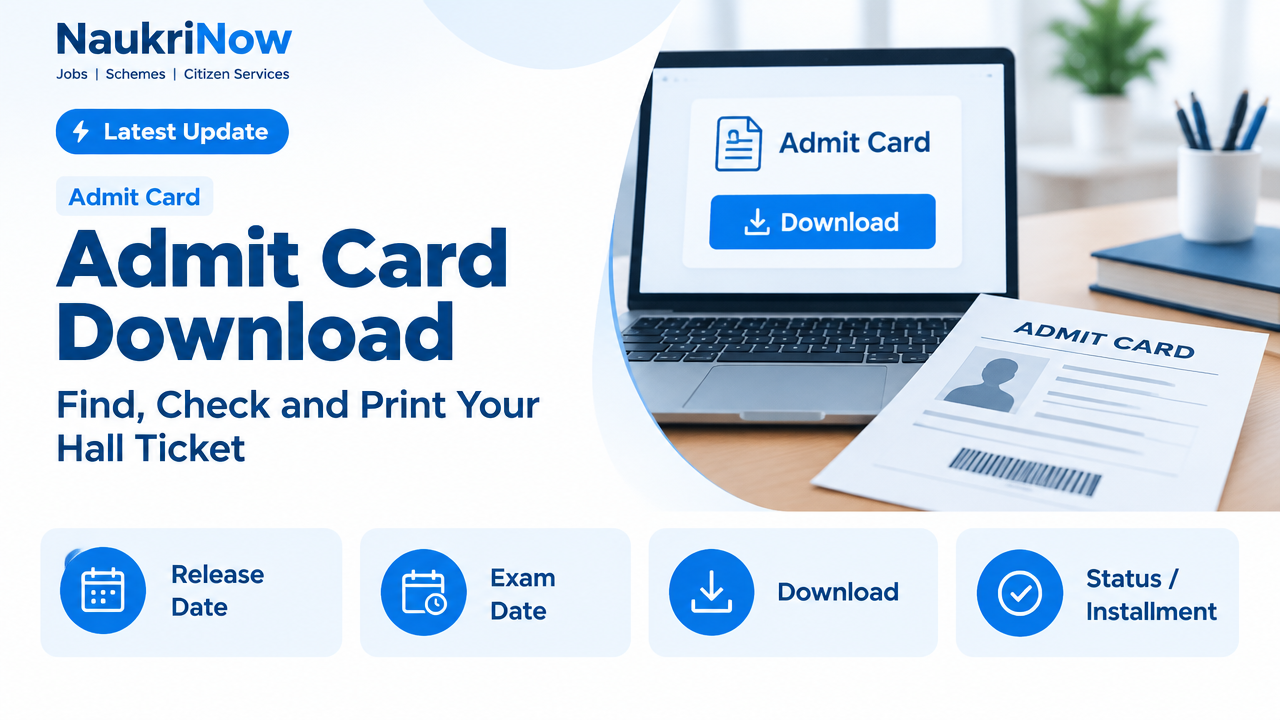
Admit Card Download — this guide explains the latest verified details, eligibility, benefits, application or status steps, and official resources relevant to this topic.
An admit card, also called a hall ticket or entry pass, is an important document for many recruitment exams, entrance tests and other assessments. It usually contains candidate details, exam information and instructions for the test day. The exact format and requirements vary, so always follow the notice issued by the organisation conducting your exam.
This guide explains how to find the right download page, retrieve your document, check it carefully and prepare for exam day. It does not provide changing exam dates, release announcements or access links. For those details, use the official website or notice of the responsible exam authority.
Admit Card Download: Before you begin: a quick checklist
Preparing a few details in advance can make the process quicker and reduce the chance of entering information on the wrong website.
- Confirm the exam authority: Check the official notification, application confirmation or recruitment notice to identify the organisation responsible for your exam.
- Use the correct website: Start from the authority’s official website or a link published in its official notice. Search results and messages can lead to lookalike pages.
- Keep your application details ready: Depending on the portal, you may need an application or registration number, date of birth, password, or another detail. Use only the information requested on the official page.
- Check the notice for instructions: It may explain when and how the hall ticket is issued, what to do if you cannot download it, and which documents to carry.
- Use a reliable device and connection: A computer is often easier for saving and printing a PDF, but a phone can work if the file opens and prints clearly.
How to download an admit card
- Open the exam authority’s official website. Check the web address carefully. If you are unsure whether a page is genuine, return to the official homepage and navigate from there instead of following an unfamiliar link.
- Find the relevant exam or recruitment section. Look for a heading such as examinations, recruitment, candidate login, hall ticket or admit card. Labels differ between organisations, so use the wording in the official notice as your guide.
- Select the correct exam and stage. Some organisations run several exams or stages through the same portal. Make sure the page relates to your specific application, post, course or test stage before signing in.
- Read the page instructions. Check which login details are required and whether the authority has provided a separate notice about downloading or printing the document. Avoid guessing at information fields.
- Enter your details carefully. Type your application details exactly as they appear in your records. Check for confusing characters, such as the letter O and the number 0, and make sure the date format matches the form.
- Open the document and review it. If the portal shows a preview, confirm that it belongs to you before saving. Download the file to a device you can access again, and note where it is stored.
- Save a backup copy. Keep a copy in a second secure location, such as another personal device or a private cloud account. Do not store sensitive login details alongside a publicly accessible file.
- Print and check the printout. Use the page size and print settings specified by the authority, if any. Make sure the text, photograph, signature and any barcode or QR code are clear and not cut off.
If the official notice says that the document will be sent or made available through a different method, follow that process. Do not assume every exam uses the same portal or issues a downloadable PDF.
What to check on your hall ticket
Read the full document, not just the first line. A small error or an overlooked instruction can cause confusion later. The information shown varies by exam, but these are useful details to review where present:
- Your identity: Check your name and other personal details against your application and accepted identity documents. Pay attention to spelling and the order of names.
- Exam information: Confirm the exam, post, course or stage shown is the one you applied for.
- Schedule: Read any date, reporting time, gate-closing time or session details printed on the document. Follow the official notice if instructions appear in more than one place, or contact the authority through its stated process if they seem inconsistent.
- Venue: Note the complete test-centre name and address. Check whether the document includes a centre code or additional directions.
- Photograph and signature: See whether these are visible and legible. If anything is missing or unclear, check the authority’s instructions before altering or attaching anything yourself.
- Exam-day directions: Look for rules about identification, permitted items, reporting, documents and conduct. These rules can differ between exams.
A downloaded hall ticket is not, by itself, proof that every application requirement has been met or that the details are correct. If something appears wrong, use the official correction or enquiry process rather than editing the file.
If the download does not work
A failed login or blank page does not necessarily mean there is a problem with your application. First, check that you are on the correct exam page and that the authority has made the document available according to its official notice. Then try these practical checks:
- Re-enter the requested details, checking for typing errors and the required date format.
- Make sure you have selected the correct exam, recruitment drive or test stage.
- Try opening the official page in another browser or on another device. If the site is slow, wait and try again rather than repeatedly submitting the form.
- Check that your browser allows downloads and that your device has enough storage. If a PDF appears blank, try opening it with another trusted PDF viewer.
- Use the official password recovery or login help option if one is provided. Do not send your password or one-time code to someone claiming to help.
- If the problem continues, follow the contact or grievance instructions in the official notice or on the authority’s website. Keep a note of the error and the time you encountered it.
Do not rely on a third-party agent, social media post or unofficial messaging group to retrieve the document. Never share your login credentials, payment details or verification codes with someone who contacts you unexpectedly.
Prepare a usable printout
Do not leave printing until the last moment. A file that looks fine on a screen may print with a clipped address, faint photograph or unreadable code. Check any printing requirements stated by the authority, then inspect the paper copy in good light.
- Print the complete document, including any instruction page that the authority says you must carry.
- Check that the page is upright, the text is readable and no important section is cropped.
- Confirm that the photograph, signature and machine-readable parts, if included, have printed clearly.
- Keep the printout flat and dry. Carry it in a folder or clear sleeve so that it is easy to present.
- Save the electronic file as a backup, but do not assume a phone display will be accepted in place of a printed copy. Follow the exam’s stated requirements.
Whether colour printing is required, whether a second copy is useful, and which identity documents to bring depend on the exam instructions. Check the current official notice instead of relying on advice from another candidate or an older exam.
Common mistakes to avoid
- Using an unofficial download page: A page can copy the look of an official portal. Verify the site through the exam authority’s own homepage or notice.
- Downloading the wrong document: Similar exam names or multiple stages can lead to a mix-up. Check your name and exam details after downloading.
- Assuming an old printout is still valid: If the authority updates or replaces a document, use the latest version available through its official process.
- Ignoring small errors: A misspelled name, unclear photograph or unexpected venue should be raised through the official channel promptly. Do not make changes to the PDF yourself.
- Waiting until the day of the exam: A slow portal, forgotten password or printer problem can take time to resolve. Download and review the document when the authority makes it available.
- Overlooking the instructions page: Rules about reporting, identity documents and restricted items may be printed separately or included after the main page.
- Sharing personal information publicly: Do not post a full admit card online. It may contain personal or application details that should remain private.
Useful examples: what to do in common situations
Your name looks different from your application
Compare the document with your application record and the identity documents relevant to the exam. A minor formatting difference may not be treated the same way by every authority, so do not decide on your own that it is harmless. Read the instructions and report a possible error using the official process. Keep any acknowledgement or reference provided.
The PDF opens, but the photograph is missing
First check whether the image is also missing when the PDF is opened on another device or with another trusted viewer. If it is still absent, read the exam notice for photo-related instructions and contact the authority through its stated channel. Do not paste a photograph onto the document unless the official instructions explicitly tell you to do so.
You cannot remember your login details
Return to the official candidate login page and use its recovery option, if available. Check your application confirmation and messages from the authority for the relevant application reference. Avoid entering your personal details on a recovery page reached through an unsolicited link.
The venue or schedule is unclear
Read the full hall ticket and the related official notice. If the information still conflicts or appears incomplete, ask the responsible authority for clarification through its official contact method. Do not rely on a search result, an old screenshot or another candidate’s schedule.
Frequently Asked Questions
Where should I download my admit card?
Use the official website or candidate portal of the organisation conducting your exam. The relevant notification or application confirmation should identify the responsible authority. Avoid download links that cannot be verified through an official source.
What details do I need to log in?
Requirements vary. A portal may request an application or registration number and another detail, such as a date of birth or password. Use the exact instructions on the official login page; do not assume credentials used for one exam will work for another.
Can I show the admit card on my phone?
That depends on the exam’s rules. Some authorities require a printed copy, while instructions may specify other arrangements. Check the current official notice and carry the format it requires. Keeping a phone copy as a backup does not replace a required printout.
What if there is a mistake in my hall ticket?
Do not alter the file or printout. Check the authority’s correction instructions and report the issue through its official channel as soon as practical. Keep a record of any request or response.
My hall ticket has not appeared on the portal. What should I do?
Check the official notice for the method and availability information, then confirm that you are using the correct exam page and login details. If the document should be available but is not, follow the authority’s official help or enquiry process. Do not trust claims from unofficial sources about a release date.
Should I print every page of the PDF?
Follow the instructions provided with the document. If the authority says that an instruction page or additional page must be carried, print it too. When in doubt, read the complete notice or ask the authority rather than leaving out a page that may be required.
Is an admit card enough to enter the exam centre?
Not necessarily. The authority may also require an accepted identity document or other materials. Check the current instructions for your exam and prepare each required item. Requirements are not identical across recruitment and entrance examinations.
Conclusion
A careful admit card download starts with the right official source and ends with a clear, checked printout. Verify that the document belongs to you, read the full instructions, protect your personal details and resolve errors through the exam authority—not an unofficial intermediary. Because schedules, document requirements and portal procedures can change, use the responsible authority’s latest notice for all exam-specific information.

Comments