Table of ContentsClick to view all sections
- How to check your name in the PMAY-G beneficiary list
- What the PMAY-G beneficiary list shows
- Tips to find your name quickly
- Download, print or share the beneficiary list
- Name not in the PMAY-G list? Try this
- PM Awas Yojana – Gramin at a glance
- Advantages and limitations of checking online
- Conclusion
- Official quick link
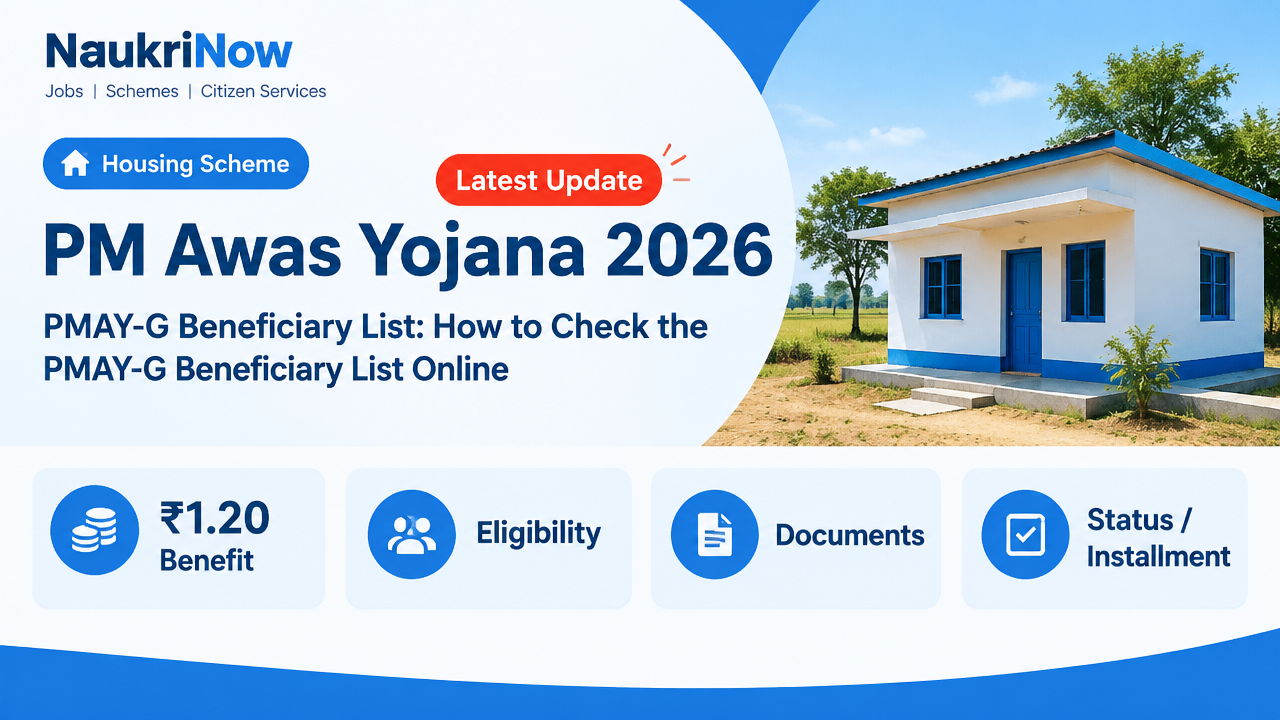
The PMAY-G Beneficiary List lets rural households check beneficiary and house-progress information published under Pradhan Mantri Awaas Yojana–Gramin. The report can help you review a recorded household, its sanction details and the construction or payment information shown for it. It is important to treat an online result as a scheme record to check—not as a substitute for confirmation from the responsible local office when information is missing or disputed.
Use the Government of India’s official PMAY-G portal for the latest information published online. Portal menus, filters and report options can change, and not every report necessarily displays the same fields. Follow the instructions on the site, select the correct location and reporting period, and contact your Gram Panchayat or block office if you need help interpreting a result.
How to check your name in the PMAY-G beneficiary list
- Open the official portal. Visit https://pmayg.dord.gov.in/. Look for the reports or beneficiary-information area. The exact menu wording and layout may change, so follow the options currently displayed on the Government portal.
- Choose a relevant report. Select the beneficiary or progress report that best matches what you need to check. Read any on-screen instructions before entering details. Different reports may use different filters or present different information.
- Enter the location. Choose the requested administrative details, such as state, district, block and Gram Panchayat. Select carefully: a nearby village may belong to a different panchayat, and a report for the wrong location can make a record difficult to find.
- Select a period if the report asks for one. Choose the relevant year or other available period. If you do not know the sanction year, see whether the portal offers a cumulative-progress option. Use that option only if it fits the report you are checking.
- Generate or open the report. Submit the selected details using the control shown on the page. Depending on the report, results may open as a table, a separate page or another view. Wait for the result and check that the location shown matches your selection.
- Search or review the records. If the report provides a search box, try the beneficiary’s name or registration number. If it does not provide a search function, review the location-wise records using the available page controls.
- Compare identifying details. Check the village and, where shown, the parent’s name, registration number or other identifying information. A name by itself may not be enough to confirm that a record belongs to the right household.
- Review the status fields. Look at the sanction and house-progress information separately. If you are checking a payment, compare the scheme entry with your own bank records rather than assuming that a reported amount confirms a credit.
- Save a copy if useful. If the report offers a download or print control, you can use it. Your browser’s print dialogue may also offer a “Save as PDF” option, depending on the device and page.
Report availability and options may be updated. If a page does not load, a filter is missing or the displayed result seems inconsistent, try checking the official portal again later or ask the local scheme office for help. Do not treat a third-party website as the final record for an official enquiry.
What the PMAY-G beneficiary list shows
The fields available depend on the report selected and the information published for the particular record. A report may show some of the details below, but it may not show all of them for every household.
| Field | What it can help you check |
|---|---|
| Village | The village associated with the beneficiary or house record. Use it to check that you opened the correct location-wise report. |
| Registration number | A scheme reference for the record. It can be useful when locating a household or discussing a specific entry with the local office. |
| Beneficiary and parent’s name | These names can help distinguish households, especially when people have similar names. A parent’s name may not appear in every report. |
| House allotted to | The person or household arrangement recorded for the house, where that field is displayed. |
| Sanction number and amount | The sanction reference and approved assistance details shown for that beneficiary. If you need to ask about a sanction, note the reference displayed. |
| Instalments and amount released | Payment progress recorded in the scheme report. The entry is useful for checking what the report says, but it does not by itself confirm when a bank credited money. |
| House status | The construction stage or completion status recorded in the report. Labels can differ between reports, so read the page’s own wording. |
Use the report as a way to identify what information is recorded and what may need follow-up. For example, a visible sanction reference and a house-status entry answer different questions. A listed instalment concerns the scheme record, while your bank statement is the place to check whether a payment reached your account. If those sources do not match, keep the relevant registration or sanction reference and ask the block office to verify the official entry.
Tips to find your name quickly
- Start with the location. Confirm the state, district, block and Gram Panchayat before searching. The wrong selection can lead to a result that appears to have no record even when you have not checked the correct area.
- Use a registration number when available. A reference number can be more precise than a name, particularly if several people have similar names. Follow the report’s instructions about which fields it accepts.
- Try reasonable spelling variations. If the report has a search box and the name does not appear, try a shorter part of the name or a spelling variation. A search may depend on how the information was entered in the record.
- Check more than one identifying field. Where the report displays a village, parent’s name or registration number, compare those details before deciding that a matching name is the right person.
- Review the period selection. Check that the year or reporting period is relevant. If you do not know the sanction year, see whether a cumulative-progress view is available and appropriate.
- Read the report labels carefully. A status or payment label may describe what is recorded in that report; do not assume it means something different from the wording shown.
- Keep notes for a follow-up. If you find a possible match or a discrepancy, note the location and any available registration or sanction reference. These details can help the local office identify the entry you are asking about.
Download, print or share the beneficiary list
Some portal reports may provide download or print controls, but the options can vary by report, device and current portal layout. If a control is shown, use it to save or print the report. You can also check whether the browser’s print dialogue includes “Save as PDF.” This is a browser and device option, so it may not appear in every situation.
Before saving or sharing a report, check what information it contains. If it includes personal details, keep the copy private and share only the information needed for an enquiry. Avoid posting household details publicly. If you send a copy to a local office, include enough context—such as the relevant location and reference number—to explain which entry you want checked, while avoiding unnecessary personal information.
A saved or printed page is a copy of what was displayed at the time you accessed it. If you need a current entry or an official clarification, check the portal again or contact the relevant Gram Panchayat or block office. A saved report should not be treated as proof that a later update has or has not been made.
Name not in the PMAY-G list? Try this
A missing search result does not, by itself, establish that a household is ineligible or that no record exists. It may be necessary to check the location, spelling, report period and type of report before drawing a conclusion. The list is a published record, not an application form or a complete eligibility test.
- Check the location selections again. Confirm the state, district, block and Gram Panchayat. If the village is associated with another panchayat, check the correct location.
- Check the reporting period. If a year is selected, confirm that it is the period you meant to view. Where available and appropriate, try a cumulative-progress report if you do not know the sanction year.
- Try a different search approach. Check spelling variations or search with a shorter part of the name. If you have a registration number and the report accepts it, use that reference.
- Ask the Gram Panchayat or block office. Ask whether a record or survey entry exists for the household and what process applies. The Gram Panchayat or Block Development Office (BDO) can help direct you to the relevant local verification process.
- For a mismatch, take the reference details. If a sanction, instalment or house-status field appears incorrect, note the registration or sanction reference and ask the block office to check the official entry.
- For a payment difference, compare records. Compare the amount shown in the scheme report with your bank records. If they differ, ask the responsible office to check the payment record.
A “no data” message may relate to the selected location, year or report rather than a final decision about eligibility. Confirm the selection and ask the local office to explain the record before making a decision based on that message. Checking a report does not automatically register a household, create a beneficiary record or guarantee selection.
PM Awas Yojana – Gramin at a glance
| Scheme detail | Information |
|---|---|
| Official name | Pradhan Mantri Awaas Yojana–Gramin (PMAY-G) |
| Administered by | Ministry of Rural Development, Government of India |
| Started | 2016; PMAY-G replaced the Indira Awaas Yojana. |
| Housing assistance cited for the scheme | ₹1.20 lakh in plain areas and ₹1.30 lakh in hilly, difficult and North-Eastern areas. |
| Related support cited | Toilet assistance of ₹12,000 under Swachh Bharat Mission (Gramin), and wage employment through MGNREGA—90 days, or 95 days in hilly and difficult areas, as applicable. |
| Current expansion cited | Approval for 2 crore additional houses over 2024-25 to 2028-29. |
These figures describe scheme assistance and related support cited for PMAY-G; applicable rules and individual approval matter. They should not be read as confirmation that every household will receive every amount or related benefit. For current details relevant to a particular household, check the official portal or ask the local administration.
Advantages and limitations of checking online
| Advantages | Limitations |
|---|---|
| Convenient access: Households can review information published in a report without visiting an office just to view that report. | Report options can vary: Not every report or filter will necessarily show the same fields, and portal menus can change. |
| Useful references: A registration or sanction number can make a follow-up question more specific. | A name match may be ambiguous: Similar names can refer to different people, so compare other displayed details. |
| Progress information: A report may show sanction, instalment or house-status details that help a household understand what is recorded. | Online entries may need clarification: If information is missing, inconsistent or unclear, the local office may need to verify the official record. |
| Possible copies: Where download or print controls are available, a household can save a report for reference. | A report is not a bank confirmation: A payment entry does not by itself prove that money reached a bank account on a particular date. |
| Can help prepare an enquiry: Checking the record first may help you identify the location or reference to mention when asking for assistance. | It is not an application or approval: Viewing a list does not create a record, submit an application or guarantee selection. |
Frequently Asked Questions
How do I check the PMAY-G beneficiary list by name?
Open the official PMAY-G portal, choose a relevant beneficiary report and select the requested location details. If the report provides a search function, enter the name or another accepted search detail. If it does not, review the location-wise records or ask the Gram Panchayat or block office for help. Check other identifying fields before treating a name match as the correct household.
Can I check the PM Awas Yojana Gramin list for 2026-27?
Use the year filter if the official portal publishes a 2026-27 report. Availability depends on the information and report options currently published. If you do not know the sanction year, check whether a cumulative-progress report is available and suitable for your enquiry.
Is this the official PMAY-G beneficiary list?
The Government’s PMAY-G portal is the official source for scheme information published there. For an official enquiry or a disputed entry, contact the relevant Gram Panchayat or block office to confirm the record.
Do I need a login, captcha or registration number?
Requirements can depend on the report and the current portal instructions. Follow the fields and prompts shown on the official site. A registration number can help identify a record, but if you do not have one, check whether the report allows another search method or ask the local office how to locate the household record. Do not assume that every report uses the same process.
Can I download the PMAY-G village list as a PDF?
If the report provides a download or print option, use it. You can also check whether your browser’s print dialogue offers “Save as PDF.” Availability can vary by report, browser and device.
Does the portal save my searches?
This guide cannot confirm how the portal handles or retains search information. For information about data handling, consult the privacy or other relevant notice on the official portal. Avoid entering sensitive account credentials into a page that does not clearly belong to the official Government site.
Why is my name not appearing in the list?
First check the selected location, spelling and reporting period. If the name remains missing, contact the Gram Panchayat or BDO and ask whether a record or survey entry exists and what process applies to your household. A missing result in one report is not, by itself, a final eligibility decision.
Does the list confirm that an instalment reached my bank?
The report may show payment information recorded in the scheme system, but that is not the same as confirming a bank credit. Compare the entry with your bank records and ask the responsible office to check the payment record if the details differ. Never share bank passwords, OTPs or sensitive account credentials with anyone.
Does checking the list register me for PMAY-G?
No. Viewing a beneficiary report does not submit an application, create a beneficiary record or guarantee selection. Ask the local administration about the applicable identification, survey and verification process.
Conclusion
To check the PMAY-G Beneficiary List, use the official portal, select the correct location and reporting period, and review the details shown for the record. Compare more than a name where possible, and distinguish a scheme payment entry from a bank credit. If a name is missing or a sanction, payment or house-status detail appears inconsistent, take the available reference information to the Gram Panchayat or block office and ask for verification. A list check is a useful way to review published information, but it does not itself create or change a beneficiary record.
Official quick link
| Resource | Link |
|---|---|
| PMAY-G official portal | https://pmayg.dord.gov.in/ |
Comments