Table of ContentsClick to view all sections
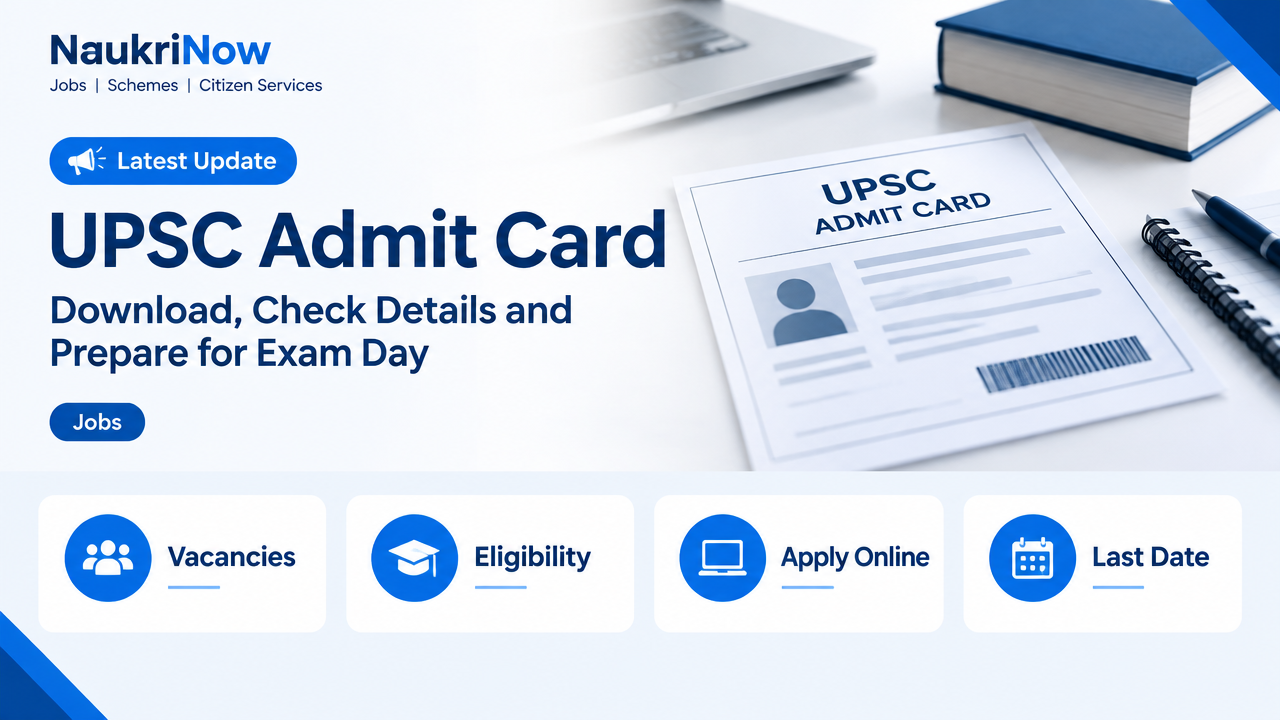
An e-admit card is an important document for appearing in a Union Public Service Commission (UPSC) examination. It identifies the candidate and provides exam-specific information, such as the centre and reporting instructions. The exact download process and exam-day requirements can vary, so treat the instructions issued for your particular examination as final.
This guide explains how to find the official download route, check your admit card carefully, deal with common problems and prepare for the examination. For current links, availability, deadlines or rules, use the UPSC’s official website and the notice for your exam. Do not rely on old screenshots, forwarded messages or unofficial websites for changing information.
Where to find your UPSC admit card
Start at the official UPSC website, upsc.gov.in. Find the examination-related notice or admit-card link relevant to your specific exam, and follow the instructions there to reach the authorised download page. The location and labels of links can change, so navigate from the official site rather than assuming that an old bookmarked address still applies.
Be cautious with search results, advertisements and messages that look like official notices. A site using UPSC-related words in its name is not necessarily an official source. Do not pay a third party to download an admit card, and do not give an unknown site your login details, date of birth or other personal information. If a notice directs candidates to a particular portal, use that link from the official UPSC page.
Before you begin the download
- Confirm the examination. Make sure you are looking for the admit card for the correct UPSC examination and stage. Different examinations, or different stages of the same selection process, may have separate instructions.
- Keep application details handy. The portal may ask for information used during registration or application. Check the instructions on the official page to see which details or sign-in method are required.
- Use a secure device and connection. A personal computer or trusted phone and a reliable internet connection can make it easier to download and save the file. Avoid entering sensitive details on a shared or public device if you can.
- Allow time for basic troubleshooting. Check that your browser can open PDF files, and that your device has enough storage. If you need a printout, plan for printing well before the examination.
- Read the exam notice first. Note any instructions about the download window, permitted documents, photographs, reporting, entry or items that are not allowed. These details are exam-specific and may be updated by UPSC.
How to download the e-admit card
- Open the UPSC website directly. Type the official address into your browser or use a trusted bookmark. Look for the examination or admit-card announcement relevant to your exam.
- Check the notice before opening a link. Match the examination name and stage with your application. Read any instructions about the correct portal and information to enter.
- Follow the official portal’s steps. Enter only the requested details, carefully and exactly as recorded in your application. The available login or verification options may differ, so follow the current page rather than relying on instructions for another exam.
- Open and inspect the document. Once it appears, confirm that it is for the right examination and candidate. If the page offers a PDF, download it to a folder you can find again.
- Save a backup and check the printout. Keep an electronic copy in a secure location. If the instructions require a printed copy, print it in advance and check that the text, photograph, instructions and any required codes are legible.
- Return to the official source if something is unclear. If the document is unavailable, a detail does not match or the portal displays an error, consult the current UPSC notice and the contact or correction process stated there.
Avoid leaving the download until the final day. Heavy traffic, a forgotten password or a printer problem can take time to resolve. Early preparation gives you time to check the document without rushing.
What to check on the admit card
Read the complete document, including text printed below or beside the main details. Check the information against your application and the official examination notice. In particular, review:
- Your identity details: name and any other personal information shown. Look for spelling differences, missing text or details that appear to belong to someone else.
- Examination and stage: make sure the admit card refers to the exam and stage you intend to sit.
- Roll or registration information: check that identifiers shown on the card are clear and consistent with the document.
- Photograph and other visual details: confirm that the image is visible and that the page has rendered properly. Follow any separate photograph instructions in the notice.
- Centre and schedule: note the venue, date, session and reporting or entry instructions printed for your examination. Check the address carefully and plan the journey using the information provided.
- Candidate instructions: read rules about identification, permitted items, prohibited items, documents and conduct. Do not assume that a rule from a previous exam still applies.
If you notice a mismatch, do not edit the PDF yourself or assume it will be accepted. Follow the correction or contact procedure published for that examination. Keep the admit card and your application details available when describing the issue, but share personal information only through official channels.
Prepare for exam day
Use the admit card and the latest official instructions to make a personal checklist. Requirements vary by examination, so this is a planning aid—not a substitute for the rules printed by UPSC.
- Keep the required admit-card copy ready in the format specified by the notice.
- Carry the original photo identity document, or other identification specifically required for your exam. Check that the name and details are suitable for matching against your admit card.
- Check whether UPSC requires a photograph or any additional document in your case. Do not assume that extra items are needed—or that they can replace a required item.
- Confirm the centre address and plan your route and travel time. Allow for local conditions, unfamiliar entrances and any reporting instructions.
- Read the rules on permitted belongings. Leave prohibited items at home rather than relying on storage facilities at the centre.
- Keep your documents safe and accessible, but do not post photographs of your admit card or identification online. They may contain information that should remain private.
On the day, follow instructions from authorised examination staff and the centre notice. If an unexpected issue arises, ask an authorised official for guidance rather than relying on advice from strangers outside the venue.
Common problems and sensible next steps
The link is not visible
First confirm that you are on the official UPSC website and have selected the right exam and stage. Read the relevant notice for information about the admit-card link and its availability. If the link has not appeared or the page has changed, do not use a link sent by an unknown person; check the official site again.
The portal rejects your details
Compare the information you entered with your application record and re-enter it carefully. Check for extra spaces, typing errors or confusion between similar characters. Use only the recovery or alternative sign-in steps offered on the official portal. Do not repeatedly guess details or send your personal information to an unofficial account.
The page is slow or will not load
Try again after a short interval, refresh the official page or use a different up-to-date browser. You can also check whether your connection is working and whether your browser is blocking downloads. Avoid opening many unfamiliar links while troubleshooting. If the problem continues, follow the official notice’s stated procedure.
The PDF is blank, incomplete or difficult to read
Download it again from the official source and open it in a reliable PDF reader. Check that the file has finished downloading before printing. If important text, a photograph or another detail remains missing or unclear, do not alter the file; seek guidance through the official process.
A detail does not match your records
Compare the admit card with your application and check whether the notice explains how to report discrepancies. Act promptly and keep a record of any communication made through the designated official channel. A self-corrected or annotated admit card is not a substitute for an official correction.
Mistakes to avoid
- Using an old link or a third-party download page. The exam portal and instructions may change. Begin from the official UPSC website.
- Checking only the name. A correct name does not confirm that the exam, stage, centre, schedule and instructions are also correct.
- Waiting until the last minute. A slow connection or printing issue can become stressful when there is no time to respond.
- Assuming every UPSC exam has identical rules. Document and entry requirements can differ. Read the instructions for the examination you are taking.
- Bringing an unapproved substitute. Do not assume that a photocopy, digital image or alternate identification document will be accepted unless the current instructions say so.
- Editing or sharing the admit card. Do not change official information on the file. Avoid sharing screenshots that reveal your personal details or identifiers.
- Ignoring updates after downloading. Recheck the official examination page for any later clarification or instruction that affects candidates.
Useful examples
Example 1: The name looks right, but the centre is unfamiliar. Do not rely on a centre remembered from another exam or an older document. Check the full venue details on the current admit card, review the related notice and plan your journey to the address provided. If the location appears inconsistent, use the official contact route to ask for clarification.
Example 2: Your application details are accepted, but the PDF will not open. Save the file again from the official portal, confirm the download has completed and open it with a PDF reader. If it is still unreadable, try a trusted device or browser. Do not download a replacement from a social-media post.
Example 3: Your identification document uses a different name format. Check the admit-card instructions for what identification is acceptable and whether any additional supporting document is required. If the difference could cause a problem, seek guidance through the official process before exam day instead of assuming the centre will make an exception.
Frequently Asked Questions
Where should I download my UPSC admit card?
Start at the official UPSC website and follow the link or instructions for your specific examination. Use any linked portal only after confirming it comes from the official notice.
Can I use an admit card from a previous UPSC examination?
No. Use the admit card issued for the examination and stage you are taking. Check its details against the current notice; an older card is not a substitute.
What should I do if I cannot download the card?
Check that you have selected the correct exam, entered the requested information accurately and followed the current portal instructions. If the issue remains, use the official notice’s troubleshooting or contact process. Avoid sharing your credentials with anyone offering unofficial help.
Is a digital copy enough on exam day?
That depends on the instructions for your examination. Check whether a printed copy is required and follow the specified format. Do not assume that showing a file on your phone will be accepted.
What if my admit card has an error?
Do not edit the document. Compare it with your application and follow the discrepancy-reporting or contact instructions published by UPSC for that exam. Raise the issue promptly and keep a record of your official communication.
Which identity document should I carry?
Carry the original photo identification document specified or accepted in the current examination instructions. Check the notice for any conditions or additional documents that apply to your situation.
Should I print more than one copy?
Follow the exam-specific instructions on printouts. Keeping a spare copy may be a practical backup where permitted, but it does not replace any other required document or rule.
Conclusion
Download your UPSC admit card through the official route, check every detail and read the complete examination instructions. Save the file securely, prepare the required documents in advance and plan your journey using the centre information provided. Because links, schedules and requirements can change, rely on the current notice on the UPSC website for all exam-specific facts.


Comments