Table of ContentsClick to view all sections
- Admit Card Print Guide: Before you print: get the right file
- A quick checklist before printing
- Step-by-step: how to print an admit card
- What to check on the printed admit card
- Colour, paper size and print quality
- Printing from a phone or using a print shop
- Common mistakes to avoid
- Useful examples
- Keep the document safe until exam day
- Conclusion
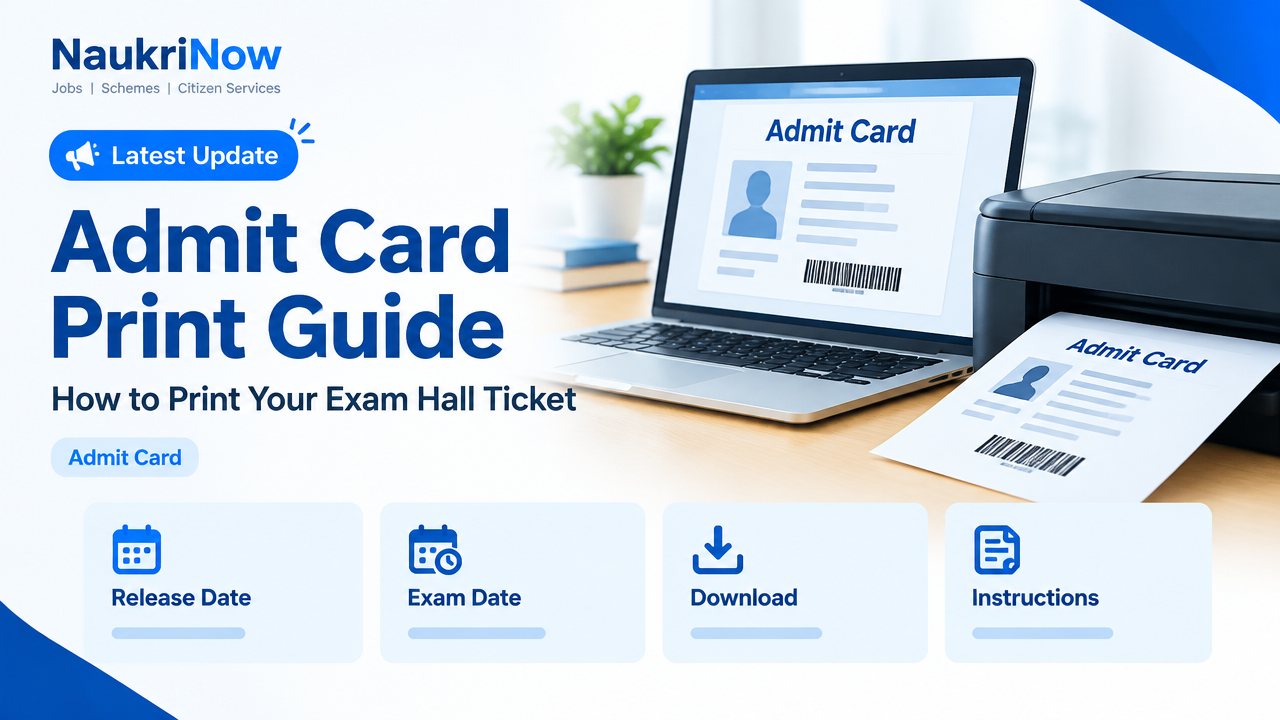
Admit Card Print Guide: How to Print Your Exam Hall Ticket
An admit card, sometimes called a hall ticket or call letter, is an important document for an examination. A clear print makes it easier for staff to check your details and for you to read the exam-day instructions. Printing one is straightforward, but a small problem—such as a cropped page, faint photograph or missing second page—can cause unnecessary stress.
This guide covers the practical steps, from finding the correct download to checking the finished copy. Requirements differ between exam authorities, so treat the instructions on the relevant official website and on your own admit card as final. This guide does not replace those instructions.
Admit Card Print Guide: Before you print: get the right file
Start at the official website of the exam authority, institution or recruitment body. Use a saved bookmark or type the known official address carefully. Search results, social media posts and messages may point to unofficial pages or outdated files. If you reach a login page through a search result, check the web address before entering personal information.
Sign in using the details requested by the official portal. These might include an application number, registration ID, date of birth or password; the exact method varies. If you have forgotten a login detail, use the recovery option on the official site rather than sharing your credentials with someone offering to retrieve the admit card.
Download the admit card as a PDF when that option is available. Save it to a folder you can find again, such as Downloads or a clearly named exam folder. Keep the original downloaded file unchanged. A screenshot or photograph of the screen is not a good substitute for the PDF: it may cut off text, reduce resolution or omit pages.
Open the saved file and confirm that it is the correct document, not a blank download or an unrelated application page. Check whether it has more than one page. Some documents include instructions, a declaration or other material after the page with candidate details. Read the complete file and follow any direction about which pages to print, sign or carry.
A quick checklist before printing
- Use the official copy: Download the file from the responsible exam authority’s website or portal.
- Check every page: Confirm that pages load, text is visible and no part appears cut off on screen.
- Check the printer: Make sure there is enough paper and ink or toner for the full document.
- Choose a suitable setting: Use the page size and print options that preserve the full layout and all details.
- Review the printout: Make sure the photograph, text, codes and instructions can be read.
- Follow the exam directions: Check the admit card for any requirement about colour, paper, signature, photograph or additional documents.
Step-by-step: how to print an admit card
- Open the saved PDF. Use a PDF reader or a browser that displays PDFs reliably. Avoid editing or converting the file just to make it easier to print; conversion can shift content or affect image quality.
- Look through the whole document. Read the candidate details, exam information and instructions. Note how many pages are present and whether the authority says to print a particular page or the entire document.
- Open the print dialogue. Select the correct printer, if you have more than one available. Check that the preview shows the full page and that no text, photograph, barcode or QR code is outside the printable area.
- Set the page range carefully. Choose all pages if the instructions call for the complete admit card. If a page range is specified, enter it accurately. Do not assume that the first page is the only one required.
- Choose the paper size and scaling. Follow any paper-size direction printed on the admit card or given on the official site. If no special size is specified, use the standard setting that matches your paper and keeps the full page visible. A fit-to-page option can help prevent cropping, but always inspect the preview.
- Decide whether to print in colour or grayscale. Do not assume colour is compulsory or unnecessary. Check the authority’s instructions. If they do not specify, choose a setting that keeps the photograph and all printed details clear; do not use a low-quality draft mode.
- Print one copy and inspect it. Check the page edges, text, photograph and any machine-readable code. If something is faint, clipped or missing, correct the print settings or try another printer before making the copies you need.
- Make any extra copies you want. Keep them clean and legible. Extra copies can be useful if one is misplaced, but carry or submit only what the exam authority asks for.
What to check on the printed admit card
Compare the printed document with the version shown in the official PDF. Check each item that appears on your card, including:
- Your name and other candidate details, such as a registration or roll number.
- The examination name or post, where shown.
- The exam date, reporting time, shift and venue details printed on your own card.
- Your photograph and any signature or other image that the document includes.
- Any barcode, QR code, reference number or security feature. It should not be blurred, folded through or covered.
- Instructions about entry, permitted items, documents, reporting and any declaration or signature required.
Read all pages, including small-print notes. An instruction may explain what to do if a detail is incorrect, whether a recent photograph is needed, or how a particular field should be completed. Do not add information, sign a field or attach a photograph unless the official instructions tell you to do so.
If a detail appears wrong or the download is incomplete, contact the responsible authority through the contact method published on its official website. Do this as early as you reasonably can. Do not alter the PDF or handwritten details to make the card appear correct. A changed document may not be accepted and can create further problems.
Colour, paper size and print quality
There is no single print setting that applies to every exam. Some authorities specify colour printing, paper size or a particular page format; others may not. Read the instructions for your examination rather than relying on advice from another candidate or an old social media post.
If colour is not specified, choose the option that reproduces all details clearly. A grayscale print may be readable in some cases, but a very pale photograph or low-contrast text may be difficult to verify. When in doubt, check the official guidance. A colour printer is not a reason to change the document, and a grayscale printer is not a reason to use a poor-quality photocopy.
Use clean, unmarked paper and a normal print quality setting. Avoid shrinking the page so much that text becomes hard to read, or enlarging it until the edges disappear. The print preview is useful, but it cannot confirm that ink or toner is strong enough. Inspect the paper itself after printing.
Printing from a phone or using a print shop
You can often download and print an admit card using a phone, but first confirm that the full PDF has saved to the device. Open the file rather than printing a browser screenshot. If the print menu does not show every page or the layout looks unusual, use a computer or ask a trusted print shop to open the original PDF.
If you visit a print shop, check the printout before leaving. Make sure the shop printed the correct file, included the required pages and returned any original papers you provided. Avoid leaving your login details, password or identity documents behind. If you use a shared computer, sign out of the portal and remove the downloaded file from the device when appropriate, while keeping your own secure copy.
Be cautious about sending the PDF through public groups or to unknown contacts. An admit card can contain personal information. Share it only when necessary, with a person or service you trust, and do not post it publicly.
Common mistakes to avoid
- Printing a screenshot: Screenshots may be low-resolution, incomplete or missing a page. Print the official PDF wherever possible.
- Printing only the first page: Important instructions or required sections may be on another page. Check the whole file and the authority’s directions.
- Ignoring the print preview: Incorrect scaling, orientation or paper selection can crop information. Inspect the preview and the finished page.
- Assuming black and white is always acceptable: Print requirements vary. Check the current instructions for your specific examination.
- Using a faint or damaged copy: Low ink, toner smudges, folds over important details and illegible photographs can make checks harder. Reprint a poor copy.
- Editing the document: Do not crop, redraw, overwrite or digitally alter the admit card. Contact the authority if it contains an error.
- Relying on an old saved card: If the authority publishes a revised document or tells candidates to download a fresh copy, follow that direction. Check the official portal again before the exam.
- Leaving printing until the last moment: Printer problems, an unavailable portal or a damaged file can take time to resolve. Download and check the document when it becomes available, without relying on unofficial claims about release dates.
Useful examples
Example 1: The right edge is missing. The printer preview shows that the candidate number is close to the page boundary, and the printout cuts off a few characters. Do not carry that copy as if it were complete. Check the paper size and scaling, select an option that fits the full page, and print again. If the file itself appears cropped, download it again from the official portal.
Example 2: The photograph looks too pale. The document is complete, but the face is difficult to make out on the paper. Check whether the admit card specifies colour printing. Try a colour printer or a clearer print setting if appropriate, then inspect the result. If the image is already unclear in the official PDF, use the authority’s official process to report the issue rather than replacing the image yourself.
Example 3: The file contains two pages. The first page has candidate details and the second has instructions. The candidate should check the card for directions about printing and carrying pages, rather than assuming the instruction page is optional. When the authority asks for the complete document, print both pages.
Example 4: A name or exam detail seems incorrect. The candidate notices a spelling or other mismatch. The safe step is to contact the exam authority through its official website and follow its correction guidance. Writing over the detail or editing the PDF does not fix the official record.
Keep the document safe until exam day
Store the printout flat in a folder or sleeve so that it does not become wet, torn or heavily creased. Keep it somewhere you can find it, separate from papers that might be discarded. Save a digital copy in a secure place as a backup, but do not assume a digital file can replace a printed document if the authority asks candidates to bring a printout.
Before travelling, read the admit card and the official exam instructions again. The admit card may list items or documents to bring, but the precise requirements depend on the examination. Do not assume that the same identification document, photograph or supporting paper is accepted everywhere. Check the responsible authority’s current instructions for your exam and follow them exactly.
Frequently Asked Questions
1. Is a digital admit card enough?
That depends on the examination. If the authority instructs candidates to bring a printed copy, a phone image or PDF is not a substitute. Check the admit card and the official exam website for the requirement that applies to you.
2. Should I print my admit card in colour?
Follow the instructions for your examination. If colour is specified, print in colour. If it is not specified, make sure the photograph, text and any codes remain clear; contact the authority if you are unsure about a difficult-to-read image.
3. Which paper size should I select?
Use the size stated by the exam authority if one is given. Otherwise, choose the setting that matches your available paper and preserves the full layout. Check the preview and the finished print for cropped edges.
4. Can I print the admit card from my phone?
Usually, you can if your device can open and print the complete PDF correctly. Check that all pages are included and that the print is legible. If the phone changes the layout or you cannot verify the result, use a computer or a trusted print shop.
5. The admit card has incorrect details. Can I correct them by hand?
Do not alter the document unless the authority specifically instructs you to complete a field by hand. For an error in official details, follow the correction or contact process on the exam authority’s website.
6. Do I need to print every page?
Check the document and its instructions. Some admit cards contain multiple pages, and the authority may require the full document. Do not discard an instruction page without checking whether it must be carried or completed.
7. Is a photocopy of the admit card acceptable?
Acceptance rules differ. Use a fresh print of the official PDF when possible, and check whether the authority permits photocopies. Do not rely on another candidate’s experience as a substitute for the current official instructions.
Conclusion
A reliable admit card print starts with the correct PDF from the official source and ends with a careful check of every page. Use print settings that preserve the complete layout, inspect the photograph and text, and keep the document safe. For questions about colour, paper size, corrections or what to carry, follow the instructions published by the exam authority responsible for your examination.



Comments