Table of ContentsClick to view all sections
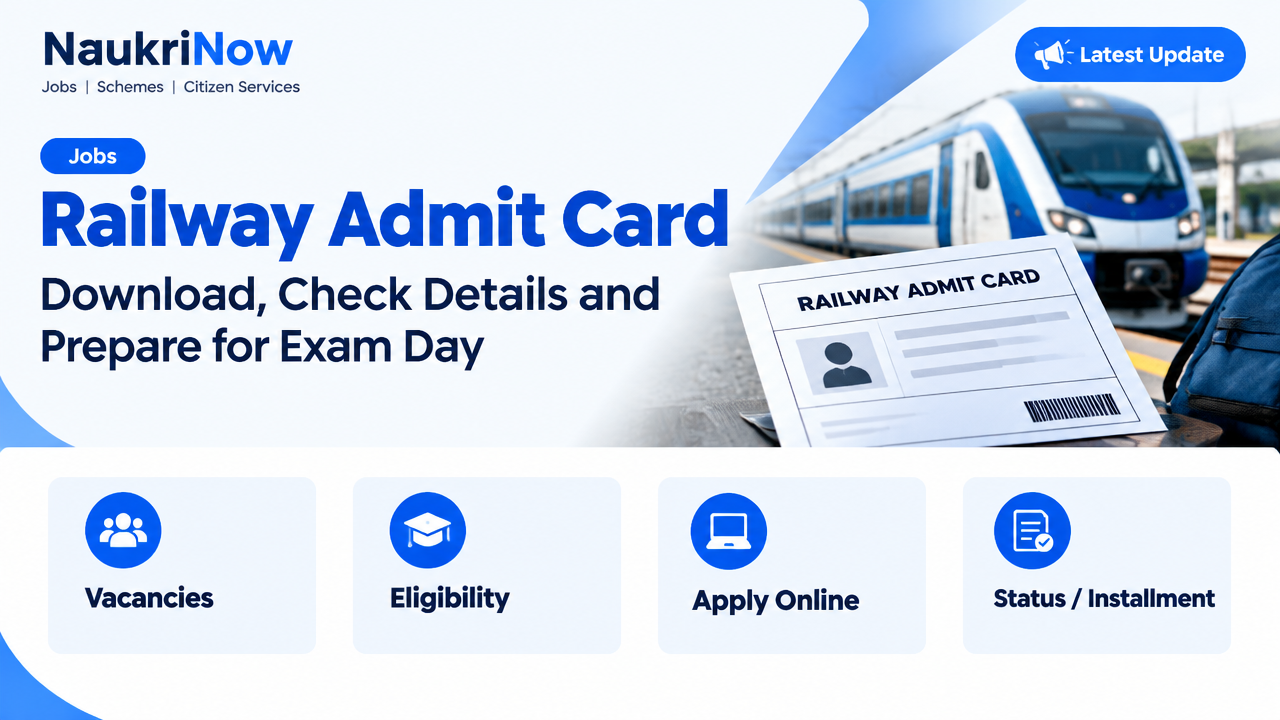
Railway Admit Card Guide: Download, Check Details and Prepare for Exam Day
A railway admit card is the official document that confirms a candidate’s permission to attend a particular stage of a recruitment process. It may be called an e-call letter, hall ticket or admission letter, depending on the recruitment notice. The name can vary; the instructions printed on the document are what matter.
Use this guide to find the correct official download route, check your details and prepare for the venue. Railway recruitment procedures can differ between Railway Recruitment Boards (RRBs), Railway Recruitment Cells (RRCs) and individual recruitment notices. For current release information, access arrangements and exam-day rules, rely on the official website and notice for the recruitment you applied to. Do not treat a general guide—or an unofficial website—as confirmation of a current update.
What a railway admit card does—and what it does not do
Your e-call letter usually identifies you and the recruitment stage, and provides information such as the assigned venue, date, reporting time and candidate instructions. The exact contents depend on the recruitment. Read the full document, including any second page or attached undertaking, rather than checking only the name and exam venue.
An admit card is not the same as an application acknowledgement, city-intimation notice or result. Some recruitment processes may provide advance information about the exam city separately. Such a notice is not a substitute for the e-call letter and may not contain the final venue details or entry instructions. Follow the specific notice for your recruitment to understand what each document means and when it is required.
Having a downloaded admit card does not guarantee that every other eligibility or document requirement has been met. Entry and verification are subject to the official instructions for that stage.
Before you try to download it
- Identify the recruitment correctly. Note the recruiting RRB or RRC, the post or recruitment name and the notice or advertisement reference from your application. Several railway recruitment pages may be active at the same time.
- Start from an official source. Use the RRB or RRC website named in the recruitment notice, or the official recruitment portal specifically identified there. Check that the page belongs to the relevant authority before entering any personal information.
- Keep your application details handy. The login may ask for a registration or application number and another credential, such as a date of birth or password. The exact fields and format can vary. Follow the portal’s wording and the instructions in your application records.
- Use a device that can save and open a PDF. A laptop or desktop can make it easier to inspect and print the file, but a phone can work if it has a reliable PDF reader and printer access. Keep enough battery and internet access for the process.
- Check your contact and application records. If you cannot locate a registration number, look in the application confirmation, saved application PDF or official messages you received. Do not guess credentials or repeatedly share them with other people.
How to download the e-call letter
- Open the relevant official recruitment page. Navigate from the authority’s main website or use the exact official portal named in the notice. A search engine can help you locate a page, but sponsored results and lookalike sites are not proof that a page is genuine.
- Find the notice for your recruitment and stage. Look for the e-call letter or admit-card link that matches the recruitment you applied for. Confirm the stage named on the link; a document for a different test or recruitment is not interchangeable.
- Read any accompanying instructions. Check the notice for the release process, login requirements and any special directions before proceeding. Current dates, availability and procedures must be verified on the responsible official source.
- Enter the requested details carefully. Match the format shown on the page. Check for typing errors, extra spaces, incorrect date order or confusion between similar characters. Use the portal’s own recovery option if you need to retrieve a credential.
- Open and inspect the complete file. Confirm that the document relates to your recruitment and stage. Make sure all pages and text are visible and that the file is not cut off or corrupted.
- Save a personal copy. Download the PDF to a device you can access offline. Use a clear file name that helps you identify it, such as the recruitment name and the word admit-card. Keep it private, particularly if the document displays personal information.
- Print it if the instructions require a printed copy. Follow the specified format and printing requirements. If the notice does not explain a detail such as colour, do not assume a rule; check the official instructions. Make sure the printed text, photograph and any code or signature are legible.
Check every important detail on the card
Do this as soon as you download the document, not on the way to the venue. Check all pages against your application records and the official notice.
- Candidate information: Look at your name, photograph and any other identifying details shown. Small formatting differences may occur, but a substantive mismatch needs attention.
- Recruitment and stage: Confirm the post or recruitment reference and the examination or selection stage. Make sure you have not opened a document from a different application.
- Date, session and reporting time: Check the information printed on your e-call letter. Do not rely on a date or time copied from a general webpage, old message or another candidate’s document.
- Venue and route: Read the full address and identify the location in advance. Similar place names can refer to different venues. Use a reliable map for planning, but treat the printed official address as the reference.
- Identity and document requirements: Note which original identity document, photograph or other item is required, and whether the notice gives any particular specification. Follow the list for your recruitment rather than carrying items based on rumours.
- Candidate instructions: Look for rules about entry, prohibited items, permitted belongings, reporting, verification and any declaration or undertaking. Instructions can differ by exam and venue.
- Print and signature requirements: If the letter asks you to sign, paste a photograph or complete a section at a specified time or place, follow those directions exactly. Do not mark or alter other parts of the document.
If something is wrong or the download does not work
A detail on the card appears incorrect: Do not edit the PDF yourself, cover text or rely on a handwritten correction. Save a copy of the document and promptly use the official contact or grievance route specified in the recruitment notice. Include only the information requested, explain the mismatch clearly and keep a record of your communication. Avoid posting your full admit card or application details publicly.
The portal says your details do not match: Recheck the registration number and the format of the other credential. Use the official recovery facility if one is provided. Confirm that you are on the correct recruitment page and that the link is intended for your stage. If the problem remains, follow the official notice’s help or contact process.
The page is slow or will not load: Try again after a short interval, use a current browser or switch between a stable connection and another trusted device. You can also clear the browser cache or open a private window. Avoid unofficial download mirrors, browser extensions that ask for account access and sites that request unnecessary payment or personal data.
The PDF will not open or print: Download it again from the official portal and open it with a trusted PDF reader. Check that the file has finished downloading and that your device has storage space. If printing, inspect a test page or print preview first so that no part of the letter is missing.
You cannot find a download link: Recheck the official recruitment page and notice for the applicable stage. A city-intimation message, application status or old e-call letter may not be the document you need. Do not infer release status from a social-media post; confirm it with the responsible RRB or RRC.
Plan for the examination day
Once you have verified the document, make a simple plan around the instructions printed on it. Check the route and allow time for ordinary travel delays. If the venue is unfamiliar, identify the entrance and transport options in advance. Do not assume that a nearby station, building or similarly named centre is the assigned venue.
Pack the items explicitly required by the e-call letter and recruitment notice. Keep the admit card clean and easy to reach, and protect it from rain or accidental damage. Carry the specified original identity document; a photocopy or a digital image may not satisfy the stated requirement. If the notice asks for a particular photograph or additional form, prepare it in the requested way.
Read the prohibited-items list before leaving. Do not take valuables or equipment that the instructions forbid. Venue staff may not be able to store personal belongings. Follow the stated reporting time and entry conditions; arriving at the venue is not the same as completing entry before a deadline. Keep your phone available for travel planning until you reach the venue, but follow the rules about devices inside the examination premises.
Use only the latest official instructions for your recruitment and stage. If a notice or e-call letter is updated, follow the current version and save a fresh copy. Do not rely on another candidate’s account: their venue, shift, document requirements or route may be different.
Common mistakes to avoid
- Downloading from the wrong board or recruitment page. Similar recruitment names can cause confusion. Match the board, application and stage before logging in.
- Assuming city information is the final venue. Read the relevant notices carefully and use the venue shown on the applicable e-call letter.
- Checking only the first page. Important conditions may appear later in the file or in a linked instruction sheet.
- Waiting until the last moment. Late checking leaves little time to address a login issue, spelling discrepancy or printing problem. Download and review the document when it becomes available for your recruitment.
- Using an edited or unclear printout. Do not crop, alter or recreate information on the card. Reprint the original PDF clearly if needed.
- Following unverified messages. A forwarded screenshot or social-media claim may be outdated or relate to another recruitment. Confirm instructions on the responsible official website.
- Sharing credentials or the full card. Registration details and the admit card contain personal information. Do not send them to strangers or upload them to public groups.
- Taking a document because someone else did. Requirements can vary. Use the official list for your own e-call letter, not a friend’s checklist.
Useful examples
Example 1: You receive a message about an exam city. Treat it as advance information only if the official recruitment source identifies it that way. Check whether a separate e-call letter is required, then use the address, reporting time and entry instructions on the applicable official document.
Example 2: Your name is spelled differently on the card. Compare it with your application and identity records. Save the letter and use the correction or grievance route specified by the RRB or RRC. Do not change the file yourself or assume that the discrepancy will be ignored.
Example 3: A friend has a different reporting time. That does not mean either card is wrong. Candidates can have different sessions or venues. Follow the time and location on your own e-call letter and verify any apparent error through the official channel.
Frequently Asked Questions
Where should I download my railway admit card?
Use the official RRB or RRC website named in your recruitment notice, or the official recruitment portal linked by that authority. Confirm the recruitment and stage before entering your login details. Avoid third-party sites that offer unofficial copies.
Is an exam-city notice the same as an admit card?
Not necessarily. Some recruitment processes share city information separately from the e-call letter. A city notice may not be valid for entry or contain the final venue instructions. Check the official notice to understand its purpose and obtain the required call letter.
What details do I need to log in?
The portal may ask for a registration or application number and another credential. Requirements and formats can differ. Use the fields shown on the official portal and your application records rather than relying on instructions for a different recruitment.
What should I do if I have forgotten my registration details?
Check your application acknowledgement, saved application copy and official messages. If the portal provides a recovery option, use it. If you still cannot access the account, follow the contact process in the recruitment notice. Never share a password or verification code with an unofficial agent.
Can I show the admit card on my phone?
Do not assume that a phone display will be accepted. Follow the instructions for your recruitment, including any requirement to bring a printed copy. A saved digital copy is useful as a backup, but it does not override the stated entry rules.
What should I do if my photograph or details are unclear?
Download the PDF again and check it in a PDF reader. If the information is still missing, unclear or incorrect, contact the authority through the official route specified in the notice as soon as possible. Do not paste a replacement photograph or edit the document unless the official instructions specifically tell you to complete a section.
What documents should I carry with the admit card?
Carry the identity document and any photograph, form or other item explicitly listed in your e-call letter or official instructions. Requirements may vary, so do not rely on a generic online checklist. Keep original-document requirements in mind and check any stated restrictions before travelling.
Conclusion
A careful check can prevent avoidable problems on railway exam day. Find the e-call letter through the official RRB or RRC source for your recruitment, save and inspect every page, note the venue and reporting instructions, and prepare only the documents and items specified for your stage. If a detail is wrong or access fails, use the official contact route rather than editing the card or trusting an unofficial workaround. For changing information such as release status, dates and exam instructions, the responsible official source is always the final reference.
Comments