Table of ContentsClick to view all sections
- What an application status tells you
- Before you check: keep the right details ready
- How to check your application status step by step
- Common status messages and how to read them
- Documents and records worth keeping
- Common problems and practical ways to troubleshoot them
- Common mistakes to avoid and tips for staying organised
- What to verify from the official source
After submitting a job or recruitment application, it is natural to want confirmation that it has reached the right place. An online status can help, but its wording is not always self-explanatory. A message such as submitted, under review or provisionally accepted may describe a particular stage of the process, not a final decision. The meaning and next steps depend on the organisation and the instructions in its official notice.
This application status guide explains how to find your record, read common updates and respond to problems without making assumptions. It is intended for Indian applicants checking recruitment or job applications, including processes run through an employer or an official recruitment portal. Use the organisation’s latest notice and portal as the authority for any current requirement, deadline or status definition.
What an application status tells you
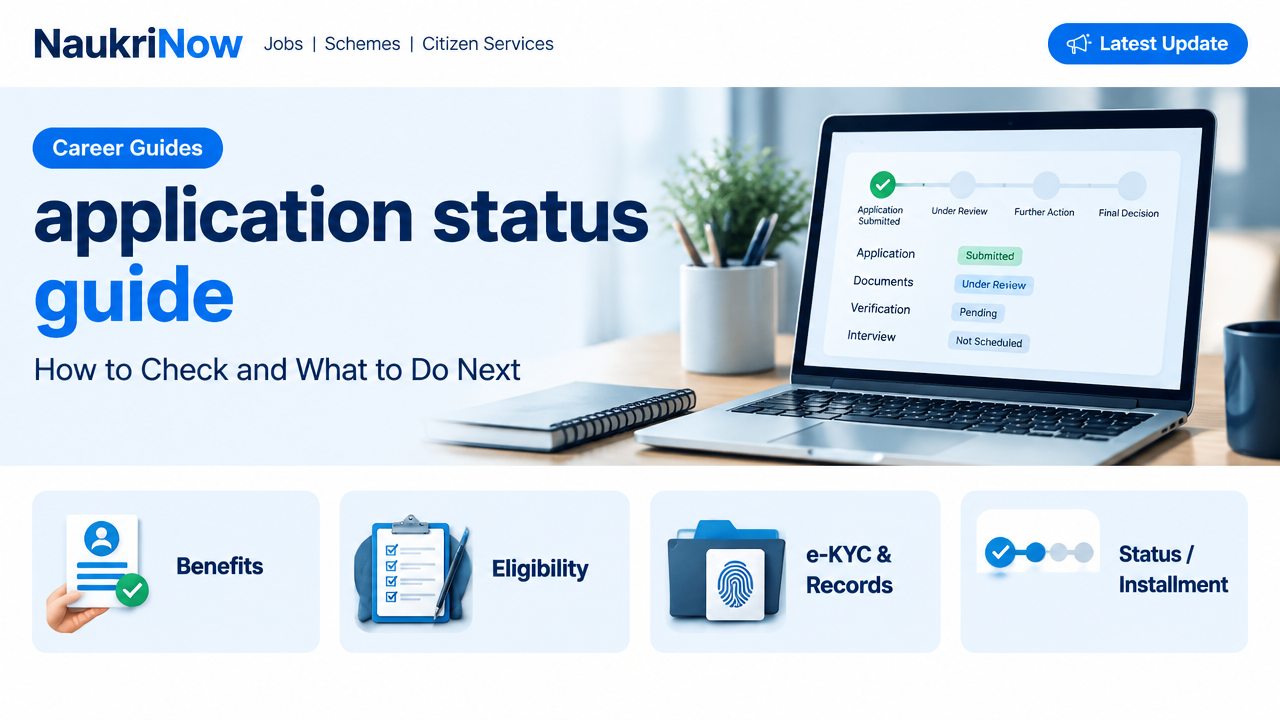
An application status is an update attached to the record you created when applying. It may confirm that a form was received, indicate that checks are under way, ask you to take an action or communicate an outcome. Some portals also show separate updates for payment, document verification, examination stages or interview scheduling.
A status is useful, but it is not always a complete account of your application. A portal may update one part of a process before another, display a general label, or take time to reflect a recent submission. An acknowledgement or application number can help you identify the record, but it does not by itself establish that you meet the eligibility criteria or that your application has been accepted for every stage.
Recruitment systems differ. A private employer may use a careers page or applicant tracking system, while a public recruitment process may have a dedicated portal and notice. Do not assume that a label used by one organisation has the same meaning elsewhere. If the portal offers a status key, help page or official instructions, read those before deciding what to do.
Before you check: keep the right details ready
Start with the information you used when applying. Having it ready reduces repeated login attempts and helps you find the correct record, particularly if you have applied for more than one role.
- Application or registration number: Look for it in the confirmation page, acknowledgement, email or SMS. Keep the full number, including any letters or leading zeroes.
- Login details: This may be a registered email address, mobile number, username or another identifier specified by the portal. Use the password created for that account.
- Recruitment details: Note the organisation, post or role, advertisement or notification reference if one was provided, and the date you applied.
- Payment reference, if applicable: Keep the transaction or bank reference and proof of payment. Payment requirements vary, so check the relevant instructions rather than assuming a fee applies.
- Application copy: Save the submitted form, confirmation page and any documents or declarations you uploaded, where the portal allows it.
Use a personal device and a secure connection where possible. If you are using a shared computer, avoid saving your password, sign out when finished and remove downloaded copies if they contain sensitive information.
How to check your application status step by step
- Find the correct official website. Start from the organisation’s own website, careers page or the recruitment notice. Follow the application-status link from there. Search results, social posts and forwarded links can lead to lookalike pages, so check the website address before entering personal details.
- Confirm that you have selected the right recruitment. If the portal lists several posts, examinations or application cycles, choose the one that matches your application. A similar job title is not enough; compare the organisation and reference details.
- Open the status or applicant login area. The link may be labelled candidate login, application tracking, recruitment dashboard or something similar. Follow the wording on that particular portal; menu names are not standard across organisations.
- Sign in with the registered details. Enter information carefully and use the account recovery option if you cannot remember your password. Do not create another account simply because one login attempt fails; a duplicate profile can make records harder to track.
- Locate the relevant application. If your dashboard contains multiple submissions, match the role, reference number and submission details before opening a record.
- Read the full message and any instructions. Check for an action button, notice, document request, correction window or next-stage information. A short status label may not explain what you need to do.
- Save a record of the update. Note the date and time you checked, and save or print the page if permitted. Keep screenshots or downloaded files private, especially if they show personal information.
- Check the official notice for the next step. Confirm how and where updates will be issued. Some organisations use the portal, while others may also send an email or SMS. Do not rely on an unofficial message as the sole source of an important instruction.
If the portal is temporarily unavailable, avoid repeatedly refreshing or resubmitting the application. Wait and try again later. If an official notice provides a support channel or query process, use that route and include only the details needed to identify your application.
Common status messages and how to read them
The table below gives general interpretations, not guaranteed definitions. The organisation’s own portal and notice determine what each message means in a particular recruitment process.
| Status or message | What it may indicate | What to check next |
|---|---|---|
| Draft or incomplete | The form may not have been finally submitted. | Check for missing fields, a final submission button or a confirmation number. Follow the portal instructions before making changes. |
| Submitted or received | The system appears to have recorded a submission. | Save the acknowledgement and confirm whether the portal shows any separate payment or document status. |
| Under review or in process | The application may be undergoing an administrative or eligibility check. | Look for a stated next step. Do not treat this as confirmation of shortlisting or selection. |
| Provisionally accepted | The application may have passed an initial system check, subject to later verification. | Read the conditions carefully. This wording does not necessarily mean final eligibility or appointment. |
| Action required or clarification needed | The organisation may need information, a correction or a response. | Check the exact request, the permitted method and any official time limit. Do not send extra documents to an unverified address. |
| Payment pending or failed | The portal may not have recorded a completed transaction. | Check the payment record and official instructions before trying again, to avoid duplicate payments. |
| Shortlisted or invited to next stage | You may have been selected to take part in a further stage. | Verify the date, venue or online link, required documents and instructions through the official source. |
| Not shortlisted, rejected or unsuccessful | The application may not be progressing in that recruitment cycle. | Read any explanation or review process offered. Check that you are viewing the correct post and application. |
| No record found | The details may not match, the record may not yet display, or you may be on the wrong portal. | Recheck the recruitment, identifier and login method, then consult the official notice or support route. |
Do not infer selection from silence, a payment receipt, a successful login or a status that has not changed. Likewise, a brief technical error is not necessarily a rejection. Look for an official explanation and keep the evidence of your submission.
Documents and records worth keeping
There is no single document list that applies to every application. The recruitment notice and portal specify what is required, in which format and at what stage. Keep a clear, private record of materials connected to your own submission so that you can respond accurately if verification or a later stage requires them.
- Submitted application form and acknowledgement or registration number.
- Copy of the recruitment notice and any official amendments that apply to your application.
- Uploaded certificates or supporting documents, in the versions you submitted.
- Payment confirmation or transaction record, if a payment was required.
- Official emails, SMS messages and portal notices related to the application.
- Relevant identity, education, experience or category documents if the official instructions call for them.
Make sure names, dates and other details are consistent with the documents you are asked to provide. If a document has a different spelling or a detail needs correction, do not alter an official record yourself. Check the organisation’s stated process for corrections or clarification. Share sensitive documents only through a verified channel and only when requested for a legitimate step.
Common problems and practical ways to troubleshoot them
You cannot log in
Check that you are on the correct portal and using the email, mobile number or username linked to the application. Confirm that the keyboard has not added spaces or changed letter case. Use the official password-reset process if needed, and check the relevant inbox or message folder for its instructions. Avoid repeated guesses that could temporarily lock the account.
The portal says no application was found
Check for a typing error in the registration number and confirm that you selected the right post or recruitment reference. If you have more than one account or application, use the details from the acknowledgement for the specific submission. If the application was recently submitted, consult the portal’s guidance before assuming that it has been lost. Contact the organisation only through a channel published on its official website or notice.
The status has not changed
A quiet dashboard does not reveal why there has been no update. The organisation may still be processing applications, or the portal may not show every internal step. Check the official notice for the expected communication method and any published schedule. Do not rely on dates circulated by unofficial groups, and do not send repeated enquiries unless the organisation’s instructions say how to raise one.
Payment was deducted but the portal shows pending
Save the transaction reference and check the payment record with your bank or payment provider. Then read the recruitment portal’s guidance on pending transactions and duplicate payments. Do not pay again immediately unless the official instructions tell you to do so. If you raise a query, provide the reference through a verified support route and never share a card PIN, password or one-time passcode.
You cannot open the page or download a notice
Try again later and use a current browser or a different device. Check whether the organisation has linked to the same notice elsewhere on its official website. A technical problem can affect access without changing the status of your application. Do not use a third-party site to upload documents or enter account credentials as a workaround.
Common mistakes to avoid and tips for staying organised
- Confusing submission with selection: A receipt confirms a record was created; it does not necessarily mean that the application passed every check.
- Checking the wrong recruitment: Similar post names can appear in different cycles. Match the official reference and your own application details.
- Submitting a second form unnecessarily: A duplicate may create confusion. First check the portal’s instructions and use the official correction process if one is available.
- Trusting messages without verification: Be cautious of messages demanding money, passwords, one-time passcodes or documents through personal accounts. Verify any claimed instruction on the organisation’s official website.
- Missing a requested action: Read portal notices and official communications fully, including any stated response method and time limit.
- Sharing too much information in a query: Include enough details to identify the application, but do not send passwords, PINs or unnecessary identity data.
For each application, keep a simple tracker with the organisation, role, reference number, submission confirmation, official portal link and date last checked. Record the exact status wording rather than summarising it as selected or rejected. Set a reminder to review official updates at sensible intervals, but avoid constant checking when no new communication is expected.
What to verify from the official source
Before taking action, confirm that the information applies to your recruitment and is current. Read the latest official notice and any corrigendum or update published by the organisation. In particular, verify:
- the correct portal and recruitment reference;
- what each relevant status means and whether any action is required;
- the accepted method for submitting a correction, document or query;
- any current deadline, schedule, eligibility condition or document requirement;
- how the organisation will communicate later stages and outcomes; and
- whether a payment is required and how payment issues should be handled.
These details can change between recruitments, so general advice should not replace an official notice. If the portal and a message appear to conflict, use the organisation’s verified channel to clarify the issue and keep a copy of both records. NaukriNow’s role is to help readers understand the process; the recruiting organisation is the authority on its own application and decisions.
Frequently Asked Questions
How can I check my application status online?
Go to the employer’s or recruiting organisation’s official website, open the relevant recruitment portal and sign in using the details linked to your application. Select the correct post or reference, then read the full status message and any accompanying instructions.
What does submitted mean on an application?
It generally indicates that the system has recorded a submission. It does not automatically confirm eligibility, successful document verification, shortlisting or selection. Check the portal and notice for the next stage.
Why does my application status still say under review?
The application may still be in a checking or processing stage, but the exact meaning depends on the organisation. Look for an official schedule or explanation. A status that has not changed is not, by itself, proof of rejection.
What should I do if I have forgotten my application number?
Look in your acknowledgement, confirmation email, SMS or saved application copy. If you cannot find it, use the official account-recovery or application-retrieval option. Contact the organisation through its published channel if the portal cannot help.
Can I submit another application if I cannot see the first one?
Do not submit a duplicate automatically. First confirm that you are using the correct account, recruitment and identifier. Check the official instructions on duplicate or corrected applications, and use the stated support process if the record remains unavailable.
What should I do if payment was deducted but my application shows payment pending?
Keep the transaction reference and check the official portal’s payment guidance. Confirm the transaction with your payment provider and follow the organisation’s process before attempting another payment. Do not share payment passwords, PINs or one-time passcodes.
Does a provisional status mean my application is finally accepted?
Not necessarily. Provisional wording can mean that a step is subject to later verification or checks. Read the conditions in the official notice and provide further information only through the verified method requested.
How often should I check my application status?
Follow the communication schedule or checking guidance in the official notice. If none is stated, check periodically rather than repeatedly throughout the day, and monitor the official portal and the contact method you registered.
How can I tell whether an application-status message is genuine?
Verify it by signing in through the organisation’s official website or by checking a contact channel published in its notice. Be wary of links asking for payment, passwords or one-time passcodes, and do not rely solely on a forwarded message or social media post.

Comments