Table of ContentsClick to view all sections
- E-Shram Card Registration and Update: what the card does—and does not do
- Who can apply for an e-Shram card?
- What information and access to prepare
- How to register online
- Using a CSC for assisted registration
- How to update details or download your card
- Advantages and limitations
- Common errors and how to avoid them
- Keeping your information accurate and secure
- Conclusion
- Official quick link
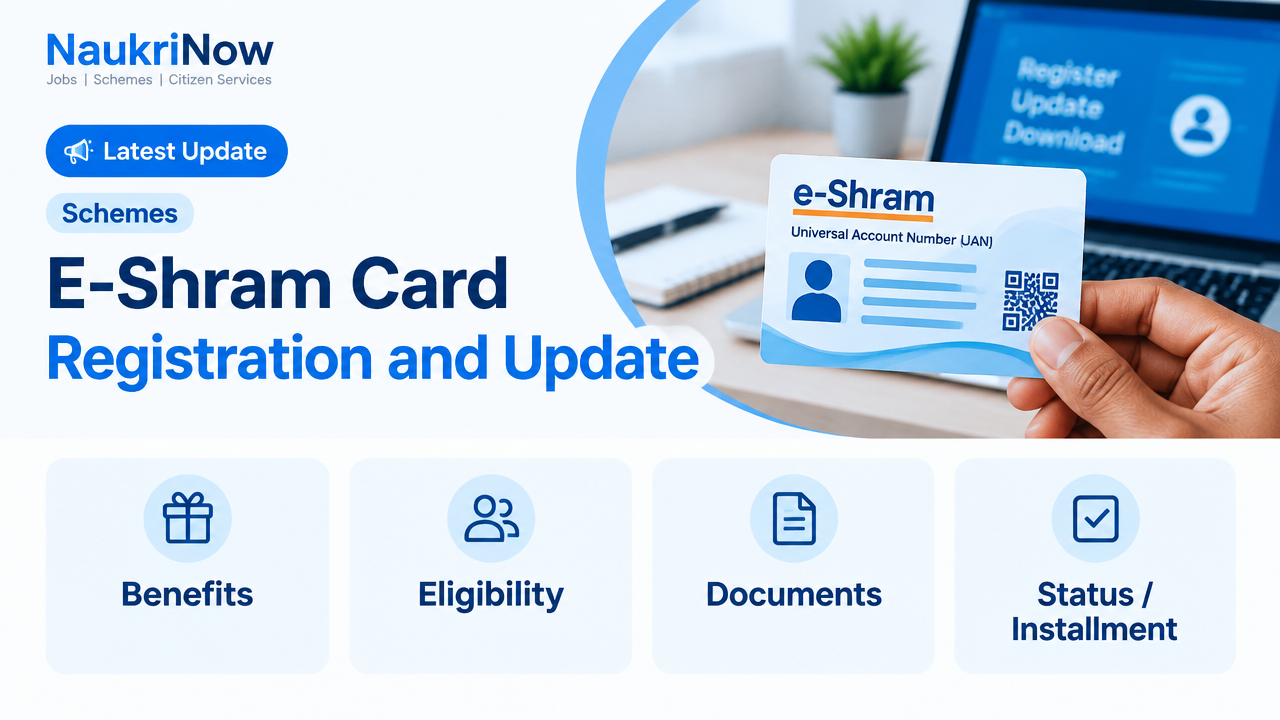
E-Shram Card Registration and Update helps eligible unorganised workers enrol in the e-Shram database and keep their profile details current. You can apply through the official portal or ask for help at a Common Service Centre (CSC). Before starting, check the eligibility rules and prepare your Aadhaar, mobile and bank details. After registering, keep your Universal Account Number (UAN) safe and check the portal for available options to update details or download your card.
This E-Shram Card Registration and Update guide explains what registration provides, who may apply, what information to prepare, how to use the online and assisted routes, and how to approach common problems. Portal screens and available services can change, so follow the instructions currently displayed on the official e-Shram portal. If you are unsure about a requirement or an editable field, confirm it there or ask a CSC operator rather than guessing or making a second registration.
E-Shram Card Registration and Update: what the card does—and does not do
e-Shram is a Government of India initiative for creating a national database of unorganised workers. A successful registration provides a UAN and an e-Shram card associated with the worker’s record. The card serves as evidence of registration in that database; it is not, by itself, approval for a pension, insurance payment, cash transfer or any other scheme benefit.
This distinction matters when deciding what to expect after applying. Registration can create a record and make available the portal’s account and profile options. It does not mean that a worker has automatically applied for, qualified for or been enrolled in every other welfare programme. Each scheme has its own rules, eligibility conditions and application requirements. Check those requirements separately before relying on a particular benefit.
| Item | What to know |
|---|---|
| Purpose | Register eligible unorganised workers in the e-Shram database. |
| Registration route | Use the official e-Shram portal or seek assisted registration at a CSC. |
| Registration fee | Registration on the official portal is free. Be cautious of anyone demanding payment to issue a card or UAN. |
| After enrolment | Keep contact, occupation and bank details accurate; check the portal for available update and card-download options. |
| Benefit guarantee | Registration alone does not guarantee a benefit. Each scheme has its own eligibility and application requirements. |
Think of the registration as a profile that needs accurate information, not as a promise of a particular payment. A correct record can help avoid inconsistencies when information is checked for another service. If your circumstances change, use the official update route for the fields it allows you to edit. If the portal does not offer an option for a field, seek guidance rather than entering inaccurate details or creating another account.
Who can apply for an e-Shram card?
The portal’s stated eligibility is for an unorganised worker aged 16 to 59 who is not a member of EPFO, ESIC or the government-funded NPS category specified for e-Shram registration. The worker should check the current portal guidance because rules, checks and the way requirements are presented may change. Do not rely only on another person’s experience: employment and membership circumstances can differ from one applicant to another.
| Eligibility check | What to check |
|---|---|
| Age | You must be between 16 and 59 years old. |
| Work status | You should be an unorganised worker, such as a self-employed, home-based or wage worker in the unorganised sector. |
| Existing membership | Check the portal’s restrictions concerning EPFO, ESIC and government-funded NPS membership. |
Do not assume that every worker qualifies. If you are unsure whether your work is within the unorganised sector, or whether a social-security membership affects your eligibility, review the latest information on the official portal before submitting an application. A CSC operator may also help you check the information available for registration, but you remain responsible for providing correct details.
Eligibility is separate from the information needed to complete a profile. Having Aadhaar, a mobile phone and bank details ready does not, on its own, establish that you qualify. First consider the age, work-status and membership conditions. If a portal check indicates that you are not eligible or you cannot resolve a question, do not try to bypass the check by changing details. Use the official guidance or ask for assistance.
What information and access to prepare
Gather the information before opening the application so you can enter it carefully. The portal may request personal, address, occupation and bank information. The exact screens and fields may vary with the current process, so use the portal’s instructions as the final guide rather than assuming that every applicant will see precisely the same sequence.
- Aadhaar: Keep your Aadhaar number available and make sure the details you enter agree with the record used for authentication.
- Mobile access: Online authentication may require an OTP sent to the mobile number linked to Aadhaar. Check that the phone is active and accessible before you begin.
- Bank details: Have your bank account number and IFSC code available. Compare the numbers with your bank records before submitting them.
- Profile information: Be ready to provide current contact and address details, occupation information and any other information requested by the portal.
- Existing account information: If you have registered before, look for the available login or record-retrieval route rather than starting a new application.
If you do not have a mobile number linked to Aadhaar, an assisted registration facility at a CSC may be an option, where biometric authentication may be available. Confirm the current process with the centre before visiting. Do not assume that every centre offers the same assistance or that a particular authentication method will be available in every case.
Review your information before submitting. A small typing error in a name, account number or IFSC can make the profile inaccurate. Use the same source records when checking details, and pause if the information does not match. If the discrepancy originates in Aadhaar, the appropriate step is to correct that Aadhaar record through the relevant UIDAI service first, then check the e-Shram portal for the next step.
How to register online
Online registration is completed through the official e-Shram portal. The portal may change its page labels or the order of screens; follow the live instructions rather than relying on an old screenshot or an unofficial guide. The general sequence below explains the main tasks without assuming that every screen will look identical.
| Step | Action |
|---|---|
| 1 | Open the official e-Shram portal and choose the registration option. |
| 2 | Enter the requested mobile and captcha details, then complete OTP verification. |
| 3 | Complete Aadhaar authentication using the method offered by the portal. |
| 4 | Fill in the requested personal, address, occupation and bank information. Review every field before continuing. |
| 5 | Submit the form and follow the portal’s confirmation instructions. Save your UAN and download or print the card if the option is available. |
At the start, make sure you are using the official portal rather than a page reached through an unfamiliar message or advertisement. Enter details only where the official process asks for them. During verification, an OTP is for authentication; do not disclose it to another person who says they need it to complete your application. If a step fails, read the message shown on the portal and use the official route or CSC assistance to understand what to do next.
Before final submission, take time to compare the information you have entered with your documents and records. Check spelling and numbers, particularly the bank account number and IFSC. Confirm that the occupation and contact details are current and truthful. If you cannot confidently answer a field, check the portal guidance or ask for help instead of entering a guess. Once the registration is complete, retain the UAN and follow the portal’s instructions for viewing, downloading or printing the card, if those options are available.
Using a CSC for assisted registration
A Common Service Centre can help people who need assistance with the online process or cannot use the available Aadhaar-linked mobile authentication. Contact or visit a centre to confirm what assistance and authentication method are currently available. Bring Aadhaar and the relevant information needed for the application, including bank details and current profile information. The centre’s operator can guide you through the steps, but the information submitted should still be checked for accuracy.
Before leaving, make sure you understand whether the registration was completed and how to access your record. Keep your UAN and any confirmation or card information provided through the official process. If you are asked to pay, distinguish between an official portal registration—which is free—and any separately explained service charge; do not pay someone who promises a guaranteed card, benefit or faster approval. When unsure, confirm the fee or process through official information before proceeding.
Assisted registration does not remove the need to check eligibility. It also does not change the fact that scheme benefits depend on the rules of the relevant scheme. If you already have an e-Shram record, tell the operator and ask for help accessing or updating that record instead of making a duplicate registration.
How to update details or download your card
For E-Shram Card Registration and Update tasks after enrolment, use the official portal’s login or update options and follow the identity-verification steps shown there. You may need your UAN and access to the registered mobile number. Which details can be changed online can depend on the field and the portal’s current process; do not assume that every item can be edited in the same way.
| Task | What to do |
|---|---|
| Update your profile | Log in through the official portal, verify your identity, open the profile-update option, change the permitted fields and save the changes. |
| Download the card | Use the portal’s login or card-download option, complete the requested verification and save or print the card shown for your account. |
| Cannot use online authentication | Visit a CSC for assistance. Take your Aadhaar and relevant details, and ask the operator which authentication method is available. |
| Aadhaar information is wrong | If the mismatch comes from your Aadhaar record, have that record corrected through the appropriate UIDAI service first; then check e-Shram for the next update step. |
Update contact, occupation and bank information when it changes, where the portal allows you to do so. Before saving an edit, compare it with the relevant source information. If you change a bank detail, carefully recheck the account number and IFSC. If a contact number changes, check the portal’s displayed process for updating and verifying it. Do not assume that changing a number in one service automatically changes it in another.
If the portal does not let you edit a particular field, do not create a second registration to work around the issue. The limitation may depend on the field or the current portal process. Read the instructions shown for that update, seek guidance through the official portal or ask a CSC operator what route is available. Similarly, if you cannot access your existing account, use the available login or record-retrieval options before considering any further action.
To download the card again, use the official portal’s login or card-download option, complete the verification requested and save or print the card shown for your account. Keep the UAN accessible for future account tasks, but protect it along with other personal information. If you use a shared device or ask someone for help, avoid leaving your account open or allowing another person to retain your authentication details.
Advantages and limitations
| Advantages | Limitations |
|---|---|
| Creates a recognised e-Shram record and UAN for an eligible worker. | Registration is not automatic approval for any specific welfare scheme or payment. |
| Offers an online route to enrol and manage available profile details. | Online access may be difficult without Aadhaar-linked mobile authentication or reliable internet. |
| Can help workers keep their details in one national database. | Incorrect or outdated information may cause problems when details are checked for another service. |
The main practical value of keeping a profile current is that the record reflects the information you have provided. A UAN gives you an identifier associated with your e-Shram registration, while the card can be downloaded through the options available for your account. These are administrative benefits of maintaining a registration, not proof that another department has approved a separate application or payment.
There are also practical limits. Online steps depend on access to the portal and the authentication method offered. Some fields may not be editable through self-service, and an inaccurate source record can prevent details from matching. Treat the e-Shram profile as one record to maintain, and check the requirements of any other service separately.
Common errors and how to avoid them
- OTP does not arrive: Check that the mobile number is active and linked to Aadhaar. If it is not, ask a CSC whether assisted registration or another available authentication method can help.
- Name or date-of-birth mismatch: Compare the information with your Aadhaar record. If the error is in Aadhaar, correct the source record through the appropriate UIDAI service first, then follow the e-Shram instructions.
- Incorrect bank details: Recheck the account number and IFSC against your bank records before saving. Avoid relying on memory when entering long number sequences.
- Duplicate registration: If you believe you already have a record, use the portal’s available login or record-retrieval options instead of registering again. Ask a CSC for help if you cannot access it.
- Uneditable profile field: Do not enter a replacement registration to get around a field restriction. Follow the instructions for that field or seek guidance from the official portal or a CSC.
- Portal step or page looks different: Portal screens can change. Follow the current official instructions and avoid relying on old screenshots or unverified directions.
- Payment or OTP fraud: Use the official portal, never disclose an OTP or password, and do not pay someone who promises a guaranteed benefit or faster approval.
- Expecting a benefit automatically: Remember that an e-Shram registration does not itself approve a payment or enrolment in another scheme. Check that scheme’s own rules and application process.
When an error appears, note what part of the process you were completing and read the message carefully. Avoid repeatedly submitting details if you are unsure whether a previous attempt created a record. Use official account options to check your registration status where available, or ask a CSC operator for help. Do not send your Aadhaar details, OTP or other sensitive information to an unknown person offering to troubleshoot the issue.
Keeping your information accurate and secure
Use the official e-Shram portal for registration, profile changes and card access. Check the web address before entering personal information, especially if you arrived through a link sent by someone else. The official portal listed below is https://eshram.gov.in/. If a message directs you to a different page and asks for an OTP or payment, do not assume it is genuine; return to the official portal independently.
Keep your UAN and card available for your own use, and share personal information only when necessary for an official process you understand. Never disclose an OTP or password to someone who claims it is needed to issue a card or secure a benefit. A registration or update should not be treated as a reason to trust an unofficial promise of guaranteed financial assistance.
Accurate information also means correcting errors at the right source. If the Aadhaar record itself is wrong, first use the appropriate UIDAI service to correct it, then check the e-Shram portal for the next step. If a bank detail is wrong, consult your bank record before editing the e-Shram profile. Keeping these source details consistent can help reduce avoidable mismatches when records are checked.
Conclusion
E-Shram Card Registration and Update is most useful when your eligibility is clear and the information in your profile is accurate. Apply through the official portal or get help at a CSC, retain your UAN, and update relevant details when they change using the options available for your account. Check the current portal instructions whenever a screen or process differs from what you expect. Treat the card as a registration record—not a promise of a particular payment or scheme benefit.
Frequently Asked Questions
Is e-Shram registration free?
Registration through the official e-Shram portal is free. Be wary of unofficial agents asking for money in exchange for a UAN, card or guaranteed benefit. If you seek assisted help, confirm any process or charge directly with the centre and do not pay for a promised benefit or faster approval.
What is the age limit for e-Shram registration?
The stated age range is 16 to 59 years. Check the current eligibility information on the official portal before applying, along with the work-status and membership conditions.
Can I register if my mobile number is not linked to Aadhaar?
Online registration uses Aadhaar authentication. If you cannot receive an OTP on an Aadhaar-linked mobile, visit a CSC and ask whether assisted biometric registration is available. Confirm the current process with the centre before visiting.
What is a UAN?
UAN means Universal Account Number. It is associated with your e-Shram registration and may be needed when accessing your record. Keep it available for account tasks and use the portal’s available options if you cannot access your existing registration.
How can I correct a mistake in my e-Shram profile?
For E-Shram Card Registration and Update, log in through the official portal and use the profile-update option for fields that can be edited. If the mistake comes from Aadhaar data, correct that record first through the appropriate UIDAI service and then follow the e-Shram portal’s instructions. For a field that cannot be edited online, seek guidance rather than creating another registration.
Can I download my e-Shram card again?
Use the official portal’s login or card-download option and complete the requested verification. Keep your UAN and registered mobile accessible, and follow the current instructions displayed for your account.
Does an e-Shram card automatically provide financial assistance?
No. Registration alone does not guarantee a payment or enrolment in another scheme. The relevant scheme’s eligibility rules and application process still apply. Check those requirements separately before assuming that registration entitles you to a benefit.
What should I do if I already have an e-Shram registration?
Do not create another record. Use the portal’s available login or record-retrieval options, and seek help from a CSC if you cannot access your existing profile. Once you regain access, check the update options for any details that need correction.
Official quick link
| Resource | Link |
|---|---|
| e-Shram official portal | https://eshram.gov.in/ |
Comments